You’re probably here because a server bill showed up, your app needs more room to grow, or someone on your team said, “Let’s just run it on EC2,” and moved on as if that answered anything.
That’s common. A lot of teams hear what is ec2 instance and get a technical definition, but not the practical one. In day-to-day work, an EC2 instance is less about cloud vocabulary and more about a simple question: what kind of machine are you renting, when is it running, and are you paying for more than you need?
What Is an EC2 Instance and Why Does It Matter
An EC2 instance is a virtual server that runs inside Amazon Web Services. If you’ve ever rented an apartment instead of buying a building, you already understand the basic idea. You get a place to run your applications without owning the physical hardware underneath it.
For a growing business, that matters fast. A small site might start on basic shared hosting. Then traffic grows, background jobs get heavier, or a custom app needs more control than a shared host can offer. That’s when EC2 starts to make sense. You choose the operating system, the amount of CPU and memory, the storage, and the network setup.

Why teams move to EC2
Think of EC2 as part of the broader idea of Infrastructure as a Service (IaaS). Instead of buying servers, waiting for delivery, installing them, and planning for peak usage months in advance, you rent compute when you need it.
That gives you a few practical benefits:
- Control: You pick the server shape and software.
- Flexibility: You can start small and change instance types later.
- Faster delivery: New environments can be launched in minutes instead of waiting on hardware.
- Operational simplicity: AWS handles the physical data center layer.
AWS has expanded EC2 heavily over time. The service started with the m1.small instance in August 2006, and AWS later introduced one-second billing in October 2017 for Linux-based instances with a 60-second minimum, which made short-lived workloads more economical according to the AWS EC2 instance history.
Practical rule: Don’t think of EC2 as “the cloud.” Think of it as a rentable computer inside the cloud, with knobs that directly affect speed, reliability, and cost.
Understanding the Core Components of an EC2 Instance
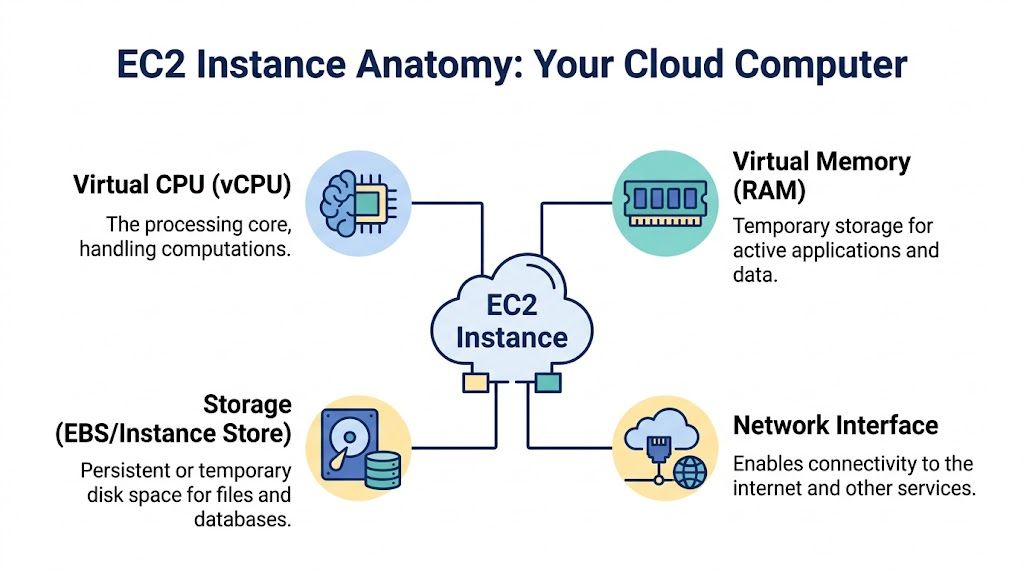
When you launch an EC2 instance, you’re not clicking one magic button. You’re assembling a machine. The easiest way to understand it is to compare it to building a custom PC.
The blueprint and the hardware
The first part is the AMI, or Amazon Machine Image. This is your starting template. It includes the operating system and can also include preinstalled software. If you choose Ubuntu, Amazon Linux, or Windows, that choice begins with the AMI.
Then comes the instance type. This is the hardware profile of your virtual machine. It decides how much virtual CPU, memory, and network capability you get. If the AMI is the software blueprint, the instance type is the motherboard, CPU, and RAM combination.
Readers often mix these up. A quick way to remember it:
- AMI = what the machine starts with
- Instance type = how powerful the machine is
Storage and persistence
Next is storage. Most EC2 workloads use Amazon EBS, which acts like a persistent hard drive. If you stop and restart the instance, your EBS volume can remain attached and keep your data.
That’s different from temporary local storage on some instance types, often called instance store. Temporary storage can be fast, but you should treat it as disposable. If the instance goes away, that data may go with it.
This is where beginners get caught. They think “the server exists, so my files must be safe.” In cloud design, you have to ask where the data lives and whether it survives a stop, restart, or termination.
Persistent storage is a cost decision too. Fast storage can be useful, but paying for high-performance disks on low-demand workloads is a common source of waste.
Networking and access control
Your instance also needs a network identity. It lives inside a VPC, which is your private network inside AWS. You assign subnets, control whether it’s public or private, and decide how other systems can reach it.
Then you set security groups. These are virtual firewalls that decide what traffic can enter or leave the instance. If your web app needs to accept browser traffic, you open the web ports. If only your internal app servers should talk to a database server, you lock it down to that path.
A simple way to map the pieces:
| Component | Plain-language role | Why it matters |
|---|---|---|
| AMI | Starting image for the server | Affects OS and base software |
| Instance type | CPU, RAM, and compute profile | Drives performance and cost |
| EBS volume | Persistent disk | Stores files, apps, and data |
| VPC and security groups | Network and firewall layer | Controls reachability and safety |
What a launch really means
When you click launch, you’re making several decisions at once:
- What software image should this machine start from
- How much compute power should it have
- Where will its data live
- Who can reach it
That’s why EC2 feels simple at first and confusing a week later. It’s one service name, but it bundles compute, storage, network, and security choices into one workflow.
Choosing the Right EC2 Instance Type for Your Workload
Most overspending on EC2 starts with one mistake. Teams choose an instance type based on guesswork, then leave it running for months.
AWS offers a wide range of instance families, and each family is designed for a different kind of job. You don’t need to memorize every name. You need to understand the pattern behind the names.
Match the family to the job
Use this mental model:
- General purpose instances fit balanced workloads like small web apps, internal tools, and application servers.
- Compute optimized instances make sense when CPU is the bottleneck, such as video encoding, batch processing, and some API workloads.
- Memory optimized instances are built for large in-memory datasets, caching layers, and certain databases.
- Storage optimized instances help when disk throughput or low-latency storage matters.
- Burstable instances can work for low, uneven workloads, but they need careful attention because their performance model isn’t the same as steady-performance families.
Here’s a quick reference.
| Instance Family | Primary Use Case | Example Workloads |
|---|---|---|
| General Purpose | Balanced CPU and memory needs | Web apps, small business software, app servers |
| Compute Optimized | CPU-heavy processing | Rendering, encoding, analytics workers |
| Memory Optimized | Large memory footprints | In-memory databases, caching, large datasets |
| Storage Optimized | High disk performance | Log processing, search, high-I/O workloads |
| Burstable | Light or irregular usage | Small dev servers, low-traffic websites |
Cost and performance are tied together
“What is an EC2 instance” transforms into a business question, not solely a technical one. The instance family and size determine how much you pay and whether your app runs efficiently.
AWS notes that a C5.large costs about $0.085/hour, while a comparable Graviton2-based C6g.large costs $0.068/hour, which is 20% lower cost for many compatible workloads. AWS also states that rightsizing based on CloudWatch metrics can reduce waste by 20-40% on the EC2 cost and capacity page.
That doesn’t mean “always choose Graviton.” It means test whether your workload is compatible and whether the performance profile fits. For many Linux workloads, newer Graviton-based instances are worth serious consideration.
A simple decision filter
If I were helping a new team member pick an instance type, I’d ask these questions in order:
- Is the app slow because of CPU, memory, or disk
- Does it run steadily all day, or only at certain times
- Can the workload tolerate interruption
- Does the app run cleanly on ARM-based Graviton instances
If your workload can tolerate interruption, it’s also worth understanding how EC2 Spot Instances work, because the pricing trade-off is very different from standard On-Demand usage.
Don’t pick the largest instance that “feels safe.” Pick the smallest one that handles real demand, then watch metrics and adjust.
How EC2 Pricing Works and What Drives Your Bill
Many teams think they’re paying for “a server.” They’re paying for a bundle of decisions.
The first part is the pricing model. On-Demand is the easiest to understand. You run the instance and pay for the time it’s on. Savings Plans and Reserved options trade flexibility for lower rates when your usage is predictable. Spot pricing can be much lower, but the capacity can be interrupted, so it fits fault-tolerant workloads better than fragile systems.
The four pricing paths
A plain-language view looks like this:
- On-Demand: Best for unpredictable workloads or short-term experiments.
- Savings Plans: Useful when you know you’ll keep using compute consistently and want flexibility across eligible usage.
- Reserved Instances: Better when the workload is stable and you’re comfortable making a longer commitment to a specific profile.
- Spot Instances: Good for batch jobs, background workers, and other workloads that can handle interruption.
Your instance isn’t the whole bill
A lot of surprise charges come from attached services, not the EC2 line itself. Storage, snapshots, and data movement can stack up.
One source puts the problem clearly. Overprovisioned instances can drive over 70% of wasted spend, and ancillary costs like unattached EBS snapshots or using high-performance gp2 volumes when a lower-cost choice would do can inflate bills by 20-50% if teams don’t audit them, according to this review of EC2 instance costs.
A good habit is to read your bill as layers:
- Compute layer: What instance types are running, and for how long
- Storage layer: What volumes, snapshots, and disk classes are attached
- Network layer: What data leaves AWS
- Waste layer: What’s still running even though nobody needs it
Common billing mistakes
Some of the most common issues are simple:
- Oversized servers: Developers choose a bigger instance “for now” and never shrink it.
- Forgotten storage: Old snapshots remain after projects end.
- Always-on non-production: Dev and test environments keep running nights and weekends.
- Premium disk by default: Teams keep fast disk types where standard performance would be enough.
Billing gets easier when you stop asking “Why is AWS expensive?” and start asking “Which component is creating this charge?”
Real World Examples and Best Practices for EC2
EC2 makes more sense when you attach it to real work. Instances are not launched for abstract reasons, but rather when a website, an API, or an internal environment needs a machine.

A WordPress site that needs room to grow
A small company might run WordPress on a single EC2 instance at first. That works when traffic is steady and modest. As visits increase, the smarter pattern is to separate concerns and avoid tying the whole site to one machine.
A useful best practice here is Auto Scaling Groups. Even if you start small, planning for multiple instances later keeps your architecture from becoming trapped around one server.
A backend API for a mobile app
An API server often has different behavior from a website. Traffic might spike during specific hours, and response time matters more than visual page rendering.
The best practice here is monitoring first, tuning second. Don’t resize based on a hunch. Watch CPU, memory, request patterns, and network behavior, then adjust the instance type to match what the service does.
A dev and test environment
This is the most common place where waste sneaks in. Teams launch EC2 instances for QA, demos, staging, or integration testing. The work ends for the day, but the instances stay on.
The best practice is straightforward:
- Shut down non-production environments when they’re not in use
- Keep environment naming consistent
- Tag instances by owner, purpose, and schedule
- Review what’s still running before each billing cycle
That’s why EC2 is both powerful and risky. It lets teams create infrastructure quickly, which is great for delivery speed. It also makes it easy to leave behind machines that nobody is using.
Smart Strategies for Managing and Optimizing EC2 Instances
Good EC2 management isn’t about mastering every AWS menu. It’s about building habits that make waste visible.
Start with visibility
AWS has offered EC2 Usage Reports since January 2014, with filtering by dimensions such as region, instance type, and custom tags. Combined with CloudWatch metrics, those reports help teams identify idle resources and rightsizing opportunities through EC2 usage reporting and monitoring.
That matters because optimization starts with questions like these:
- Which instances run all month but show very low activity
- Which teams own them
- Which regions are generating the highest compute spend
- Which tags are missing and making ownership unclear
Tags aren’t optional
If you don’t tag instances, your bill becomes detective work. Every EC2 instance should have tags that identify the owner, workload, environment, and purpose.
A simple tagging pattern might include:
- Owner: The team or person responsible
- Environment: Production, staging, development, test
- Application: The service name
- Schedule: Always-on or scheduled
That small amount of discipline changes cost reviews completely. Without tags, you’re guessing. With tags, you can hold the right team accountable and spot patterns quickly.
Use metrics to make decisions
CloudWatch helps answer the most important optimization question. Is this instance busy?
Look at sustained utilization, recurring low-activity periods, and whether the machine is oversized for its job. A dev instance with very little activity overnight and on weekends is a scheduling candidate. A production app server with modest average load but sharp midday spikes may need scaling rather than downsizing.
“If nobody can tell you why an instance must stay on, it probably shouldn’t stay on all the time.”
The hidden pattern behind EC2 waste
A lot of cloud waste doesn’t come from dramatic mistakes. It comes from normal team behavior. Someone launches a test box. Another person keeps a staging server up “just in case.” A project ends, but its machine stays attached to storage and keeps billing.
That’s why monitoring and cost control aren’t separate tasks. They’re the same discipline. The goal isn’t only to understand performance. It’s to connect performance to spend and remove idle compute before it turns into routine waste.
A Smarter Way to Stop Paying for Idle EC2 Instances
The biggest EC2 cost problem for many small and midsize teams isn’t bad architecture. It’s simple inactivity. Servers keep running when nobody’s using them.

AWS guidance referenced in this brief says up to 35% of provisioned compute resources remain idle, and SMBs often overspend by 25-30% on idle EC2 due to forgotten dev and test instances. The same brief also notes that native scheduling tools can be complex, while dedicated platforms such as CLOUD TOGGLE provide role-based scheduling access for this problem, as discussed in AWS instance scheduling workflows.
Why manual shutdowns usually fail
In theory, you can ask engineers to stop instances each evening and start them again in the morning. In practice, that breaks down quickly.
People forget. Teams work irregular hours. Contractors need limited access. Nobody wants to hand broad AWS console permissions to every person who might need to turn something on for a quick test.
That’s why scheduling matters more than reminders. If an environment follows a normal business-hour pattern, automate it. Let the machine start and stop on schedule, and allow exceptions when needed.
Why dedicated scheduling tools help
Native cloud tooling can work, but it often assumes comfort with IAM, service configuration, and AWS-specific setup steps. That’s fine for experienced platform teams. It’s not ideal for every business.
A dedicated scheduling tool gives teams a narrower control surface. The useful part isn’t just automation. It’s safe delegation. A product manager, QA lead, or operations teammate may need to control uptime windows without seeing the whole AWS account.
Here’s a quick walkthrough that shows what that kind of scheduling looks like in practice:
A practical policy to adopt this week
If you want a simple starting point, use this checklist:
- Schedule dev and test first: These environments usually have the clearest idle windows.
- Require an owner tag: Don’t schedule mystery instances.
- Allow overrides: Teams sometimes need after-hours access.
- Review exceptions monthly: If something always overrides the schedule, it may need a different policy.
This is one of the fastest ways to improve EC2 cost control because it targets waste that often has no technical justification.
Your Next Steps with Amazon EC2
An EC2 instance is a virtual server, but that short definition misses the real point. What matters is how you size it, store data on it, secure it, and decide when it should run. That’s where performance and cost meet.
If you’re planning broader infrastructure changes, this guide to cloud migration strategies can help you think beyond a single server and design a cleaner move to cloud operations. For a practical first step, review your non-production EC2 instances, check which ones sit idle, and put a shutdown schedule in place before the next billing cycle.
If your team wants a simpler way to control EC2 uptime, CLOUD TOGGLE lets you schedule server start and stop times without giving everyone full cloud-account access. It’s a practical option for reducing idle compute waste across environments that don’t need to run all day.