Thinking about moving from your own data center to the cloud? The AWS TCO Calculator is the tool you need to get your arms around the real financial impact of that decision. It’s designed specifically to help you forecast what it will actually cost to migrate from an on-premises setup to the AWS cloud.
The calculator provides a detailed side-by-side comparison, but it goes way beyond just server costs. It forces you to think about all the associated expenses, like IT labor and the day-to-day operational overhead of keeping the lights on.
Why You Can't Plan a Cloud Budget Without It
Shifting from on-premise hardware to the cloud is more than just a tech upgrade; it’s a complete overhaul of how your business thinks about money. You’re swapping big, infrequent capital expenses (CapEx) for predictable, recurring operational expenses (OpEx). The TCO AWS Calculator is the bridge that helps you model this financial shift without flying blind.
If you don't do this homework, it's incredibly easy to underestimate the full picture. That's how you end up with shocking budget blowouts a few months after your migration. A solid TCO report, on the other hand, turns cloud cost management from a reactive headache into a proactive business strategy, letting your team make decisions backed by real data. We've written more about this financial shift in our guide on the real cost of cloud.
Uncovering the Costs Hiding in Your Data Center
One of the most common mistakes I see is people focusing only on the server hardware they're replacing. The true cost of an on-premise data center is packed with indirect expenses that the calculator helps you put a number on. These often-forgotten costs are absolutely critical for a fair comparison.
They include things like:
- IT Labor Costs: All that time your team spends on server maintenance, patching, and swapping out old hardware.
- Operational Overhead: The bills for power, cooling, and the physical floor space your data center occupies.
- Software Licensing: The recurring cost of licenses for operating systems, virtualization software, and other critical tools.
By making you account for these items, the AWS TCO Calculator gives you a much more honest baseline to start from. It's a foundational tool for evaluating the financial side of a move, making a comprehensive guide to Cloud Computing vs. On-Premise essential reading.
Making the Case to Leadership
Getting buy-in from stakeholders means speaking their language, and that language is data. A TCO report is your best friend here. It translates the technical benefits of the cloud, flexibility, scalability, reliability, into the terms the C-suite cares about: cost savings, operational efficiency, and reduced business risk.
Here’s a look at the kind of summary page the AWS TCO Calculator generates.

The visual summary immediately shows the potential three-year savings, giving you a powerful, at-a-glance argument for making the switch. This helps you frame the conversation around long-term value, not just the upfront costs of getting the migration done.
So, you’re ready to see what moving to AWS might really cost. Let's walk through the TCO Calculator's interface. It’s the first step in building a business case that holds up to scrutiny.
First things first, you need to find it. The good news is the AWS TCO Calculator is publicly available on the AWS website. You don’t even need an AWS account to start plugging in numbers, which makes it perfect for those early-stage planning meetings before you've committed to anything.
Quick vs. Advanced Calculator
Once you land on the page, you'll see two main options: a Quick estimate and an Advanced one. Knowing which one to use is crucial for getting a number you can trust.
The Quick calculator is exactly what it sounds like: fast. It’s designed for a high-level, back-of-the-napkin estimate using industry averages. This is the one you use when your boss asks, "Is moving to the cloud even in the right ballpark for us?" It gets the conversation started.
The Advanced calculator is where the real work begins. This is for serious budget planning. It digs into the nitty-gritty details of your on-premise setup, giving you a much more granular and accurate comparison.
A classic mistake is taking a Quick estimate and presenting it as the final budget. Use the Quick mode to open the door, but always follow up with the Advanced calculator and real data before you sign on any dotted lines.
Navigating the Key Input Areas
The Advanced calculator is structured logically, mirroring the components of a traditional data center. This layout is pretty intuitive and helps make sure you don't forget a major cost center. You'll work your way through a few core categories.
Here are the main sections you’ll need to fill out:
- Servers: This is where you’ll detail your server fleet, whether they're physical boxes or VMs. Think number of servers, vCPUs per server, and total memory.
- Databases: Got SQL Server or Oracle? This is where you specify your database workloads. Licensing models are a huge cost driver, so be sure to get this part right.
- Storage: Here you'll input your total storage footprint. The calculator lets you differentiate between types like Network Attached Storage (NAS) and a Storage Area Network (SAN).
- Networking: This section helps you estimate the costs for data transfer, basically, data moving in and out of your AWS environment.
Don't Forget to Adjust AWS's Assumptions
This is probably the most important tip I can give you. To get a truly accurate estimate, you have to review and tweak the default assumptions AWS plugs in.
AWS pre-populates fields for things like IT labor, power, and cooling costs based on their own data and averages. While helpful, these numbers might not match your reality at all.
For example, the calculator might assume a 25% savings on IT admin labor. But what if your team is already running lean? That assumption would seriously inflate your projected savings. Always click into the "Cost Details" or "Assumptions" tab to fine-tune these figures. This one small step can transform a generic estimate into a personalized forecast that your CFO will actually believe.
Modeling a Real-World Migration Scenario
Theory is all well and good, but let's get our hands dirty and build a TCO scenario from scratch. We'll walk through a classic business case: moving a small, on-premises web application infrastructure over to AWS. This will show you exactly how to translate your physical hardware into a solid cloud cost estimate using the AWS TCO calculator.
Picture this: your company runs a web app on three core servers tucked away in a data center. Before you even open the calculator, the first step is to get a clear inventory of what you're actually migrating. Don't stress about getting it perfect down to the last megabyte; a good baseline is all you need to get started.
Defining the On-Premises Inventory
Let's lay out a sample infrastructure. This is the kind of basic info you'd pull together from your IT team before diving into any analysis.
- Web Server: A virtual machine with 4 vCPUs, 16 GB RAM, running Windows Server.
- Application Server: Another VM, this one with 8 vCPUs, 32 GB RAM, also on Windows Server.
- Database Server: The powerhouse of the group, with 8 vCPUs, 64 GB RAM, running SQL Server on top of Windows Server.
Now for storage. Let's say the web and app servers share 1 TB of general-purpose network attached storage (NAS). The database, needing a bit more performance, sits on 500 GB of a storage area network (SAN). These details are critical because the calculator uses them to recommend equivalent AWS services, like EC2 instances and EBS volumes.
Translating Specs into Calculator Inputs
With your inventory in hand, it's time to start plugging these details into the calculator. As you enter each server's vCPU and RAM, the tool will immediately suggest a comparable EC2 instance type. For instance, your 4 vCPU, 16 GB RAM web server might map to an m5.xlarge instance.
But here’s where you need to apply some real-world judgment. Don't just blindly click "accept" on the first recommendation. Is your on-prem server constantly pegged at 90% CPU, or does it sit idle most of the day? If it's underutilized, you could probably get away with a smaller, cheaper instance and bank some savings right out of the gate.
The process of defining your server, storage, and network inputs is really the foundation of a reliable TCO estimate.
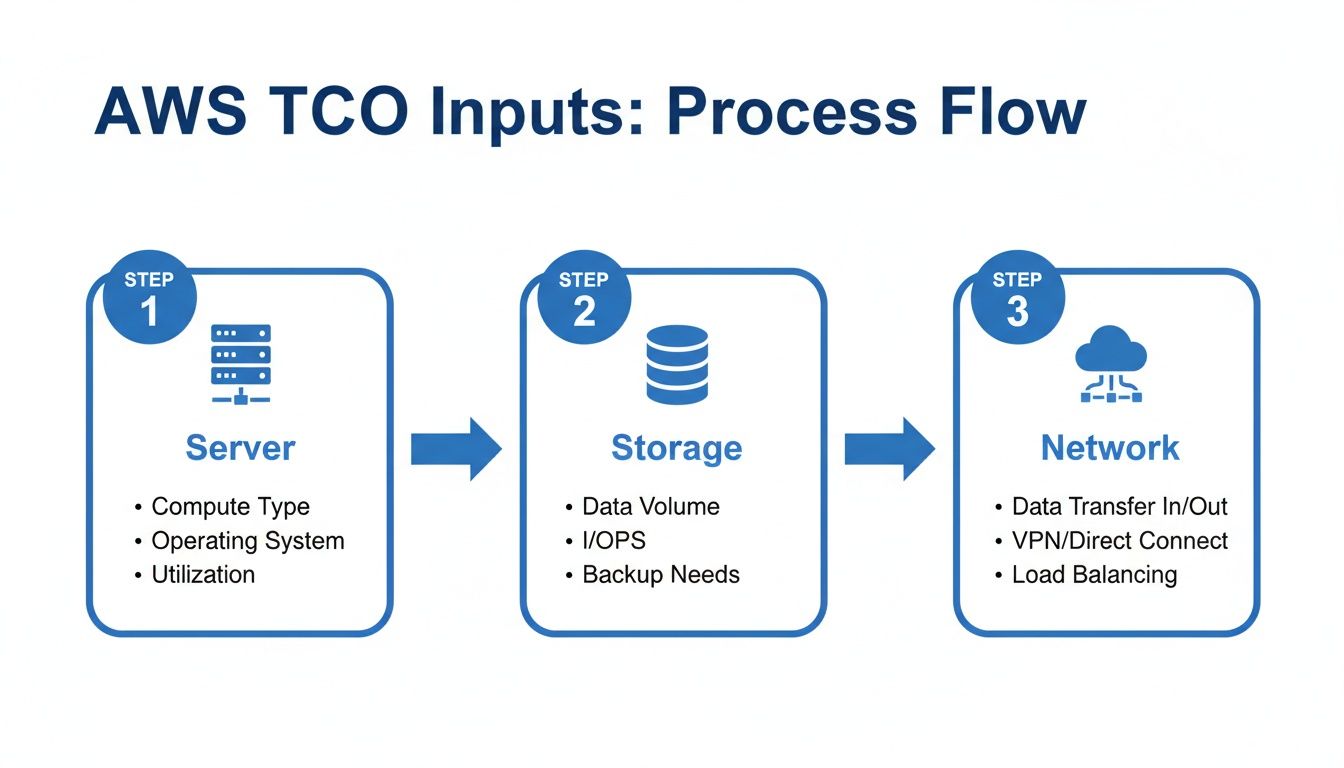
This diagram really highlights how all these pieces, servers, storage, networking, are interconnected when you're trying to build a complete cost picture.
A huge piece of the TCO puzzle is software licensing. For our scenario, you'd need to specify that all three servers require Windows Server licenses. For the database, you'd also have to add the SQL Server license. The good news is that AWS offers "license-included" instances, which simplifies everything by bundling that software cost right into the hourly instance price. It's often a major cost driver, so you can't afford to overlook it.
One of the biggest mistakes I see people make is completely forgetting about data transfer. While data coming into AWS is generally free, you pay for data going out to the internet. You absolutely must estimate a monthly figure, even if it’s just a rough guess, to avoid a nasty surprise on your first AWS bill.
Thinking ahead about optimization can also unlock some serious savings. For example, what if you containerized the application? An AWS analysis of a similar three-server setup found that it cost about $474 per month. But by applying a 23% compute reduction through containerization, that cost dropped to just over $370. You can learn more about how to model these efficiencies on the AWS blog.
Let's put some of these numbers into a simplified table to see how the costs stack up.
On-Premises vs. AWS TCO Example Breakdown
Below is a high-level comparison illustrating the shift in cost categories when moving our three-server application from an on-premises data center to the AWS cloud.
| Cost Category | On-Premises (Annual) | AWS Cloud (Annual) | Key Considerations |
|---|---|---|---|
| Server Hardware | $8,000 | $0 | AWS handles all hardware procurement and maintenance. |
| Storage Hardware | $3,000 | $0 | Storage costs are bundled into services like EBS and S3. |
| Network Hardware | $1,500 | $0 | Networking infrastructure is part of the AWS service. |
| Software Licensing | $4,500 | $5,500 | AWS License-Included models can be slightly higher but offer flexibility. |
| IT Labor | $25,000 | $10,000 | Labor shifts from hardware management to cloud administration. |
| Power & Cooling | $2,000 | $0 | Included in the AWS pricing. |
| Compute & Storage | $0 | $6,000 | This is the direct cost for EC2 instances and EBS volumes. |
| Total Annual Cost | $44,000 | $21,500 | Significant TCO reduction is driven by eliminating hardware and reducing labor. |
This table provides a clear, at-a-glance view of the financial benefits. The on-premises model is heavy on capital expenditures (hardware) and operational labor, while the AWS model converts those costs into predictable, operational expenses for compute, storage, and licensing. The bottom line is often a dramatic reduction in total cost of ownership.
How to Read Your TCO Report and Find Savings
Okay, so the AWS TCO Calculator has spit out its report. Now what? This is where the real work begins. Don't just look at the big, flashy savings number at the top, this document is your strategic roadmap for optimizing cloud spending before you even start the migration.
That high-level summary graph showing your projected three-year savings is great for getting executive buy-in, but the gold is buried deeper in the detailed cost breakdown. This is where you get a line-by-line comparison of your on-prem world versus the projected AWS expenses.

Decoding the Cost Breakdown
This detailed view slices your costs into familiar buckets, which makes it much easier to see exactly where the money is going. If you understand these line items, you can spot real opportunities to save.
- Compute Costs: This is the big one, the virtual servers (EC2 instances) that will replace your physical machines. If this number makes you wince, it’s a huge flashing sign to investigate rightsizing your instances or committing to something like Savings Plans to lock in a lower rate.
- Storage Costs: This bucket covers services like EBS for your virtual hard drives and S3 for object storage. A quick look here will tell you if the calculator's recommended storage tiers actually match your performance needs or if you can shift things to cheaper options.
- Networking Costs: This is the sneaky one that often gets overlooked. We're talking about data transfer fees. If your networking costs look surprisingly high, you might need to rethink your architecture. Maybe a Content Delivery Network (CDN) could slash those data egress fees.
- IT Labor: This is a "soft cost," but it's a significant part of the TCO story. The calculator estimates how much you'll save by not having your team rack servers and swap hard drives. If this number feels off, it’s time to go back and double-check the assumptions you made about your team's day-to-day work.
Turning Insights into Action
Think of your TCO report as a living document, not a final grade. By digging into it, you can find the high-spend areas and start figuring out how to shrink those numbers. The goal here is to move past the initial estimate and start designing a smarter, more cost-effective cloud setup.
A little analysis can show you just how much your service choices matter. For instance, let's say you have three applications running 40 tasks on m5.large instances. Your annual compute costs could easily hit $11,212.80. Factor in storage and networking, and you're looking at a total platform TCO of $20,035.20.
But what if you switched to a serverless approach like AWS Fargate? Your compute costs might actually jump to $17,302, but you could wipe out the storage fees, bringing your total TCO to $25,164.40. The official AWS blog has some great insights on how containerization impacts these numbers.
Your first TCO estimate is a starting point, not the final word. Use it to ask the critical 'what-if' questions. What if we used a different instance family? What if we went serverless? This back-and-forth process is what leads to real, long-term savings.
Once you’ve made the move to the cloud, you'll want to see how your projections stack up against reality. Our guide on AWS Cost and Usage Reports explained is the perfect next step for comparing your forecast to your actual spending.
From TCO Estimate to Real AWS Bill Reduction
Getting a detailed report from the AWS TCO Calculator is a great first step. It gives you a powerful forecast of potential savings, but that’s all it is: a forecast. The real-world savings you actually pocket depend entirely on what you do after the migration.
To really shrink your AWS bill, you need to move beyond the calculator’s initial numbers and adopt ongoing strategies. This means shifting from a one-time analysis to a continuous discipline of finding and eliminating waste.
One of the biggest, and most common, sources of wasted budget? Idle cloud resources. I'm talking about all those non-production servers left running 24/7 for workloads that are only active during business hours, quietly inflating your monthly costs.
Target Idle Resources for Immediate Savings
Think about your development, staging, and testing environments. Do they really need to be running at 3 a.m. on a Sunday? For almost every business, the answer is a hard no. Every single hour those instances run outside of work hours is money down the drain.
Trying to shut these resources down manually is a losing game because it's tedious, easy to forget, and just not reliable. This is where automated scheduling becomes your most valuable player in the cost optimization game. By setting up simple schedules to power down non-essential EC2 instances, you can generate immediate, predictable savings with very little effort.
A Simpler Approach to Server Scheduling
Now, AWS does offer native tools like AWS Instance Scheduler. But let's be honest, they can be a headache to set up, often requiring you to deploy CloudFormation templates and wrestle with IAM roles. For teams that want a more direct and less complex solution, a platform like CLOUD TOGGLE offers a streamlined alternative.
The main advantage here is simplicity and accessibility. Instead of getting lost in the AWS console, you can use a clean, intuitive interface to:
- Create Schedules in Minutes: Set up daily or weekly on/off schedules with precise timing for different teams or projects.
- Delegate Safely: Give non-engineers the ability to manage schedules without exposing your entire AWS account. This empowers more people to contribute to savings.
- Override with Ease: Let developers temporarily override a schedule if they need to work late, giving you flexibility without sacrificing control.
A TCO analysis shows you where you could save money on paper. Automating the shutdown of idle resources is how you turn those potential savings into actual dollars on your AWS bill. It's one of the fastest ways to see the financial upside of the cloud.
Compared to native tools, this approach is laser-focused on doing one thing exceptionally well: stopping you from paying for resources you aren’t actively using. This focus makes it far easier to implement and manage, turning what was a complex optimization task into a simple, routine action.
You can learn more about different strategies in our comprehensive guide to AWS cost optimization. By adopting a proactive scheduling strategy, you transform your TCO report from a static document into a dynamic roadmap for continuous financial improvement, ensuring your cloud spend stays lean and efficient long after the initial migration.
Still Have Questions About the AWS TCO Calculator?
Even with a detailed walkthrough, you might have a few lingering questions about the AWS TCO calculator. Let's tackle some of the most common ones I hear from teams just getting started. This should clear up any confusion and help you avoid some frequent stumbling blocks.
Just How Accurate Is This Thing?
The calculator's accuracy is a direct reflection of how good your input data is. Plain and simple. It gives you a solid directional estimate by modeling the big cost drivers like compute, storage, and even IT labor.
But remember, it's working off a set of standard assumptions. It can't possibly capture every nuance of your unique architecture or predict fluctuating usage patterns down to the dollar.
Think of it as a strategic planning tool to build your initial business case, not a final, binding quote. Once you migrate, you'll want to refine your forecasts using real-world data from the AWS Cost and Usage Report.
What Are the Biggest Mistakes People Make?
The most common error, hands down, is feeding it inaccurate or incomplete data from your on-premise setup. If the starting point is wrong, the entire comparison will be skewed from the get-go.
Another major pitfall is completely forgetting about software licensing costs. These can be a massive part of your TCO, and overlooking them will give you a nasty surprise later.
Finally, I see a lot of users just accept AWS's default assumptions for things like IT labor savings or infrastructure overhead without a second thought.
Always challenge the defaults. Take a few extra minutes to validate your inputs and adjust the assumptions to match your actual business. This small step can prevent you from building a forecast that's wildly out of touch with reality.
Can I Use the Calculator for My Existing AWS Environment?
While the tool was really built to compare on-premise infrastructure to AWS, you can still get some value from it for existing cloud setups. You can model "what-if" scenarios, like figuring out the cost impact of moving a self-managed database on an EC2 instance over to a managed service like RDS.
However, for directly optimizing what you're already running in the cloud, other tools are much more effective. To go beyond estimates and start actively cutting your spending, you should get familiar with the various AWS Cost Management Tools available. Services like AWS Cost Explorer and Trusted Advisor, along with third-party platforms, are designed specifically for analyzing and trimming down your live AWS bill.
A TCO estimate is a forecast, but real savings come from action. CLOUD TOGGLE helps you turn that forecast into reality by automatically powering down idle non-production servers during off-hours, generating immediate and predictable savings on your AWS bill. Take control of your cloud costs by starting a free 30-day trial of CLOUD TOGGLE today.