Figuring out the cost of Amazon WorkSpaces is a lot like picking a mobile phone plan. You can go for a flat monthly rate if you know you'll be using it a lot, or a pay-as-you-go hourly option for more sporadic use. This means your final bill could be just a few dollars a month or well over a hundred for a high-performance virtual desktop.
Your Guide to Amazon WorkSpaces Pricing Models

To get a handle on Amazon WorkSpaces costs, you first need to understand its two core pricing structures. Think of it as choosing between a monthly gym membership and a pay-per-visit pass.
Each model is built for a different kind of work style, and picking the right one is your first, and biggest, step toward controlling your cloud desktop spending. This choice isn't a small detail; it's what will shape your monthly bill and can unlock major savings if it matches how your team actually works.
The Two Core Billing Options
The biggest decision you'll make is between the AlwaysOn and AutoStop models. These two options dictate how you're charged for the computing power your virtual desktops use.
AlwaysOn (Monthly Billing): This is a simple, flat-rate monthly fee that gives you unlimited access to your WorkSpace. It’s the best fit for full-time employees who need their desktop ready to go all day, every day. The cost is predictable, which makes budgeting a breeze.
AutoStop (Hourly Billing): With this model, you pay a small monthly base fee plus a low hourly rate that only kicks in when someone is actively using their WorkSpace. It’s perfect for part-time staff, contractors, consultants, or students who don’t need a full 40+ hours of access every week.
Let's take a quick look at how these two models stack up.
Amazon WorkSpaces Billing Models at a Glance
| Billing Model | Best For | Cost Structure | Example Use Case |
|---|---|---|---|
| AlwaysOn | Full-time employees, heavy users | Flat monthly fee for unlimited use | A developer or customer support agent working a standard 9-5 workday. |
| AutoStop | Part-time workers, contractors, flexible schedules | Small base fee + hourly rate for active use | A weekend consultant or a student who logs in for a few hours at a time. |
Choosing between these two is the foundation of managing the cost of Amazon WorkSpaces. A mismatch is one of the fastest ways to overspend. For example, putting a part-time contractor on a monthly plan means you’re paying for hundreds of hours the desktop just sits idle.
Key Factors Influencing the Final Price
Beyond just the billing model, a few other things will move the needle on your final bill. The hardware "bundle" you choose, which covers CPU, memory, and storage, is a major cost driver.
The operating system also plays a part, as Windows licenses typically cost more than Linux. Finally, the specific AWS region where you launch your desktops can have a small impact on pricing. For a deeper look into how AWS calculates costs across its platform, you can learn more about AWS cloud services pricing in our detailed guide.
As we go on, we’ll break down each of these pieces. This will give you a clear map of how everything connects, so you can build a virtual desktop setup that fits your team's needs without breaking the bank.
The Key Components Driving Your WorkSpaces Bill
Figuring out your Amazon WorkSpaces cost is a bit like looking at a restaurant bill. The main course has a price, but so do the drinks, appetizers, and sides. Several critical choices directly impact your final monthly invoice, and understanding them is the key to avoiding surprises.
The single biggest factor is the hardware bundle you choose. This is the engine of your virtual desktop, combining compute power (vCPU), memory (RAM), and storage into one package. Picking the right bundle is a constant balancing act between performance and cost.
Matching Hardware Bundles to User Needs
Amazon offers a spectrum of bundles tailored to different kinds of work. Think of it like picking the right tool for the job; you don't need a jackhammer to hang a picture.
- Value Bundles: These are your entry-level options. They're perfect for light tasks like data entry, email, and basic web browsing where you just need the essentials.
- Standard Bundles: The most popular choice for a reason. These offer a balanced mix of resources that comfortably handle general office productivity. Think running Microsoft Office, using a CRM, and juggling a few apps at once.
- Performance Bundles: Built for power users like developers, data analysts, and engineers. With more vCPUs and memory, they can run complex queries or compile code without slowing to a crawl.
- Graphics Bundles: The top-tier machines, equipped with dedicated GPUs. These are non-negotiable for graphic designers, video editors, and CAD professionals who rely on graphically intensive applications.
One of the most common ways companies waste money is by giving users a bundle that's far too powerful for their daily tasks. On the flip side, an underpowered machine just leads to frustrated employees and lost productivity. Regular check-ins on usage help ensure everyone has the right-sized machine for their job.
The Impact of Operating Systems on Cost
The next item on your bill is the operating system (OS). Your choice here directly adds or subtracts licensing fees from your WorkSpaces price.
Amazon Linux and Ubuntu WorkSpaces are the most budget-friendly choices. Since they're open-source, they don't have any extra licensing fees tacked on. This makes them a fantastic option for development teams or organizations already comfortable in a Linux environment.
Most businesses, however, run on Windows. When you pick a Windows WorkSpace, the price automatically includes the Microsoft Windows license fee, making it more expensive than a Linux machine with the exact same hardware.
Bring Your Own License (BYOL)
If your company already has a Microsoft software assurance agreement, the BYOL model is a game-changer. It allows you to use your existing Windows 10 or 11 licenses, which slashes the monthly cost of each WorkSpace. This can lead to savings of up to $4 per WorkSpace per month, a number that adds up quickly across an entire organization.
How Your AWS Region Affects Pricing
Finally, the AWS region where you launch your WorkSpaces plays a subtle but important role. While the price differences between regions are often small, they can become significant when you're managing a large fleet of virtual desktops.
AWS service pricing isn't the same everywhere. Local factors like infrastructure costs, taxes, and energy prices mean that running a WorkSpace in US East (N. Virginia) might be a bit cheaper than running the same one in Europe (Frankfurt). For a deeper dive into how AWS generates its billing data, our guide on how to read your AWS Cost and Usage Reports Explained is a great resource.
While user latency should always be your top priority, it's worth comparing prices across a few viable regions. Even a small price difference per machine can translate into real savings when multiplied across hundreds of users.
Choosing Between Monthly and Hourly Billing Models
This is your first major decision point for controlling your Amazon WorkSpaces bill. AWS gives you two distinct billing models, and picking the right one for each user is where the real savings begin. Think of it like a gym membership: do you need a flat-rate monthly pass for unlimited access, or a pay-per-visit plan for occasional workouts?
The AlwaysOn model is that flat-rate monthly pass. It’s a predictable fee, making it ideal for your full-time staff who need their desktop available all day, every day. On the flip side, the AutoStop model is the pay-per-visit option, designed for part-timers, contractors, or students. You pay a small base fee plus an hourly rate, but only when the desktop is actually in use.
The AlwaysOn Model Explained
The AlwaysOn model is as simple as it gets. You pay a fixed price each month for a WorkSpace, and your employee can use it 24/7. There are no surprise charges, which is a huge win for budgeting. You know exactly what your bill will look like for every full-time user.
This is the most cost-effective choice for anyone who works a standard 40-hour week or more. It’s a "set it and forget it" approach for your core team, eliminating the need to track every minute of usage. The peace of mind from a fixed cost is its biggest selling point.
The AutoStop Model Advantage
The AutoStop model is a true pay-as-you-go system. It has a small fixed monthly charge for the provisioned storage and a low hourly rate that only kicks in when the WorkSpace is active. Once a user logs off or is inactive for a set time, the WorkSpace stops, and so does the billing.
This structure makes AutoStop the obvious choice for anyone with intermittent or unpredictable schedules. Good examples include:
- Part-time employees working just a few days a week.
- Contractors and freelancers on short-term projects.
- Students who only log in for specific classes or assignments.
- On-call staff who need access on standby but might not use it daily.
By using the AutoStop model correctly, you guarantee you only pay for the actual hours your team is working. For a segment of your workforce, this can slash your WorkSpaces bill dramatically.
The chart below breaks down the main factors that drive the price of a WorkSpace, regardless of which billing model you choose.
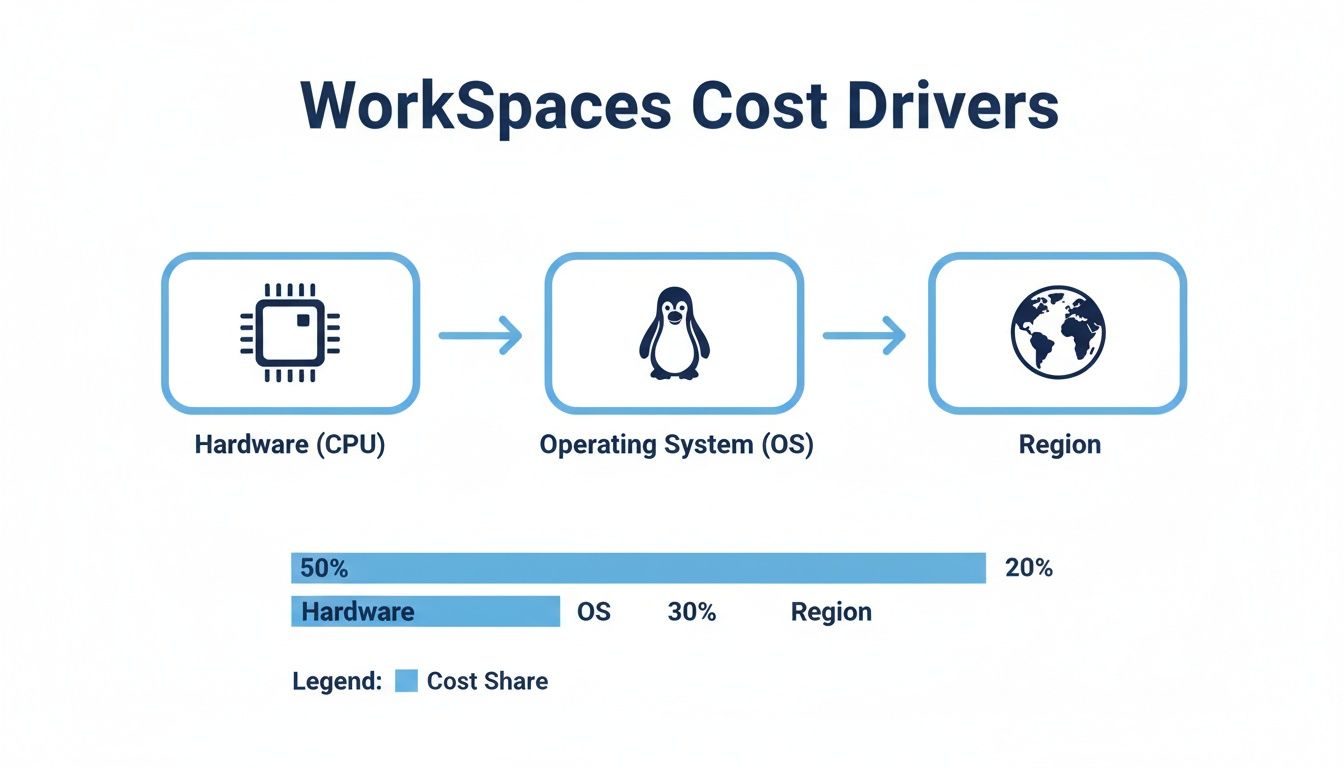
As you can see, while the billing model is key, your hardware and operating system choices are also major contributors to the final cost.
Finding the Break-Even Point
So, when does the flat-rate AlwaysOn plan actually become cheaper than the hourly AutoStop plan? The answer lies in a simple calculation. For example, back in 2023 when WorkSpaces gained huge traction for remote work, a standard bundle in the US East (N. Virginia) region was priced at $31 per month for the AlwaysOn plan. The same bundle on the AutoStop plan was $7.25 per month plus $0.28 per hour. You can find current numbers on the official AWS WorkSpaces pricing page.
To find the break-even point with those numbers, you just do the math:
($31.00 – $7.25) / $0.28 = 84.8 hours.
This means if a user needs their WorkSpace for more than 85 hours in a given month (which is about 21 hours per week), the flat-rate AlwaysOn plan is the cheaper option. For anyone using it less than that, the hourly AutoStop model will save you money.
Making this data-driven choice for every single user is how you align your cloud desktop spending directly with your team's actual needs, optimizing your costs right from the start.
Calculating Real-World WorkSpaces Costs
Theory is one thing, but let's talk about what these numbers look like in the real world. The best way to get a handle on the cost of Amazon WorkSpaces is to walk through a few common business scenarios. Seeing how different choices impact the monthly bill for teams of different sizes is the only way to truly grasp what you'll be spending.
We're going to break down three examples. Each one will cover the bundle choice, billing model, and the final monthly cost, showing all the math along the way. These examples will show you just how powerful it is to match your billing model to actual work patterns.
Scenario 1: The Lean Startup
Picture a small, growing startup with 10 developers. These are power users who spend all day coding, compiling, and testing. They need their machines to be fast and available throughout the entire workday.
- User Type: 10 Developers (Full-Time)
- Workload: High-performance tasks like coding and running local development environments.
- Bundle Choice: Performance Bundle (Windows), 4 vCPU, 16 GB RAM.
- Billing Model: AlwaysOn (Monthly), since they are full-time employees working standard hours.
Cost Calculation:
Assuming a Performance Bundle costs $78 per month in the US East (N. Virginia) region, the math is refreshingly simple.
10 users x $78/month = $780 per month
For a startup, this predictable monthly cost makes budgeting a breeze. The team gets the powerful desktops they need to stay productive, and the company avoids any surprise bills.
Scenario 2: The Mid-Sized Hybrid Team
Now let's look at a mid-sized company with a mix of employee types. They have 50 full-time administrative and sales staff, plus 20 part-time contractors who come and go for seasonal projects.
- User Type: 50 Full-Time Staff + 20 Part-Time Contractors
- Workload: Standard office apps for the full-timers; intermittent access for the contractors.
- Bundle Choice: Standard Bundle (Windows) for all 70 users, 2 vCPU, 8 GB RAM.
- Billing Model: AlwaysOn for the full-time staff and AutoStop for the contractors.
Cost Calculation:
Let's use some estimated prices for the Standard Bundle. The AlwaysOn monthly plan is $44/month, and the AutoStop hourly plan is $7.25/month plus $0.39/hour. We'll assume the contractors work about 40 hours each month.
- Full-Time Cost: 50 users x $44/month = $2,200
- Part-Time Cost:
- Base Fee: 20 users x $7.25/month = $145
- Usage Fee: 20 users x 40 hours/month x $0.39/hour = $312
- Total Part-Time: $145 + $312 = $457
- Total Monthly Cost: $2,200 + $457 = $2,657 per month
This is where smart billing really pays off. By splitting the billing models, the company avoids paying the full monthly rate for 20 users who only need occasional access, saving a significant amount of money.
Scenario 3: The Large Enterprise
Finally, let's model a large enterprise with 200 users. This team is diverse: general office staff, developers, and a group of 15 graphic designers who need serious horsepower for their creative apps. This calls for a tiered approach.
- User Type: 155 Office Staff, 30 Developers, 15 Graphic Designers.
- Billing Model: All are full-time employees, so AlwaysOn (Monthly) is the clear winner for cost-effectiveness.
- Bundle Choices:
- Standard Bundle (Windows) for 155 office staff at $44/month.
- Performance Bundle (Windows) for 30 developers at $78/month.
- Graphics.g4dn Bundle (Windows) for 15 designers at $190/month.
Cost Calculation:
- Office Staff: 155 users x $44/month = $6,820
- Developers: 30 users x $78/month = $2,340
- Graphic Designers: 15 users x $190/month = $2,850
Total Monthly Cost: $6,820 + $2,340 + $2,850 = $12,010 per month
This example shows how to control costs at scale by "right-sizing" bundles for specific user groups. A one-size-fits-all approach would have been far more expensive. To get the full picture, you have to look beyond the sticker price and account for all the factors that make up the true cost of SaaS.
The savings from a mixed-model approach are well-documented. For example, if you have 100 full-time and 10 part-time users, simply putting the part-timers on an hourly plan can result in a 5% savings versus putting everyone on a monthly plan. As you grow, the savings multiply; a 2025 analysis found that a 400-user organization that blended 80% monthly and 20% hourly billing cut its WorkSpaces bill by 18%. You can dive deeper into these models by exploring these specific cost analyses on venn.com.
Actionable Strategies to Optimize Your WorkSpaces Costs
Alright, you understand the pricing models and have a good idea of what your WorkSpaces should cost. Now for the important part: actually cutting that bill down. Let's walk through the practical tactics you can use to turn those calculations into real savings.
These aren't just one-time fixes. Think of this as building a habit of continuous monitoring and adjustment. By making these practices part of your routine, you'll keep the cost of Amazon Workspaces in check and make sure you’re getting the most out of your investment.
Activate AutoStop for Every Hourly User
This is the easiest win, and you should enable it for every single WorkSpace on an hourly plan. The native AutoStop feature is designed to automatically shut down a virtual desktop after a certain period of inactivity, which stops the hourly charges from racking up.
It’s like the lights in your office that automatically turn off when no one is in the room. It sounds basic, but it's amazing how many teams forget to switch this on, leading to completely avoidable costs. This simple setting ensures you're not paying for hours when a part-time employee or contractor just walked away from their desk.
Right-Size Your Fleet by Analyzing Performance
One of the most common ways cloud budgets get bloated is by over-provisioning: giving users a WorkSpace that's way more powerful than they actually need. Assigning a Standard bundle to someone who only does light data entry is like buying a high-performance gaming rig for them to check emails. It’s just burning money.
To fix this, you need to "right-size" your fleet. Here’s a simple three-step approach:
- Monitor Performance: Jump into Amazon CloudWatch and look at the CPU and memory utilization metrics for your WorkSpaces. You’re looking for machines that consistently run low, like a CPU that rarely goes above 20%.
- Identify Candidates: Tag any WorkSpaces that are clearly oversized for their workload. These are your best candidates for a downgrade.
- Take Action: Modify the WorkSpace and switch it to a cheaper hardware bundle that better matches its usage. This one move can slash the cost of that desktop by 30-50% or more.
Doing this analysis quarterly is a great way to make sure your resources keep pace with your team's needs. You stop paying for horsepower that nobody is using. For a broader look at this topic, exploring general cloud cost optimization strategies can offer some great additional ideas.
Achieve Deeper Savings with Automated Scheduling
While AutoStop is reactive, it waits for a user to be idle. Automated scheduling is proactive. It gives you direct control to define exactly when WorkSpaces should be off, like overnight, on weekends, and during holidays. This is where you can find the biggest and most predictable savings on the cost of Amazon WorkSpaces, especially for hourly users.
Instead of waiting for inactivity, a schedule guarantees the machine is off during non-working hours. This simple habit can cut out over 120 hours of potential idle time for each user every single week. If you want to see the math behind this, check out the full breakdown on the hidden cost of idle VMs and how scheduling puts an end to that waste.
By scheduling a fleet of 50 hourly WorkSpaces to shut down every weeknight and weekend, a business can easily save thousands of dollars per month. This transforms unpredictable hourly billing into a more controlled and forecastable expense.
AWS does offer some native tools to do this, but they get complicated and clunky to manage once you have more than a handful of users. This is exactly where a dedicated tool makes a huge difference.
Simplify Scheduling with CLOUD TOGGLE
A platform like CLOUD TOGGLE was built to solve this exact problem. It provides a clean, simple interface where you can build and manage shutdown schedules for your entire team without needing to be an AWS scripting wizard.
This approach gives you a few major advantages over trying to build it yourself:
- Ease of Use: It's simple enough for non-technical managers to set schedules for their own teams, pushing cost-saving responsibility out to the people who know the workflows best.
- Guaranteed Savings: Proactive scheduling takes the guesswork out of cost control. You know the machines will be off, which means you know the savings will appear on your next bill.
- Safe Delegation: You can give team leads scheduling permissions without handing over the keys to your entire AWS console, improving both security and accountability.
When you combine smart right-sizing with a solid scheduling strategy, you create a powerful system for keeping your WorkSpaces environment lean, efficient, and affordable.
Frequently Asked Questions About WorkSpaces Costs
When you're digging into Amazon WorkSpaces costs, a few questions always seem to pop up. Let's tackle the most common ones head-on so you can get a firm grip on your budget and make the right calls for your team.
Are There Any Hidden Costs With Amazon WorkSpaces?
While your bill is mostly driven by the bundle and billing model you choose, a few other charges can sneak in. It's smart to plan for these so you don't get any surprises.
The most common one is data transfer. Any data your WorkSpace sends out to the public internet gets billed by the gigabyte, and the exact rate depends on your AWS region.
You also need to account for any other AWS services you connect to your WorkSpaces. Each one has its own price tag.
- AWS Directory Service: If you're using Simple AD or integrating with your own Active Directory for user management, that service has its own monthly fee.
- Amazon S3: Using S3 buckets for extra user storage or to run backups? Standard Amazon S3 pricing will apply to that storage and data transfer.
- Third-Party Applications: Don't forget about software licenses. Any application you install on a WorkSpace that requires its own license will add to your total cost of ownership.
These extra charges are usually small and manageable, but you absolutely need to factor them into your forecast to see the true cost.
How Does CLOUD TOGGLE Compare to the Native AWS AutoStop Feature?
AWS's built-in AutoStop is a solid first step for saving money. It’s a reactive feature; it automatically stops a WorkSpace only after a user has been inactive for a preset amount of time. It's effective, but it relies on someone stopping their work first.
CLOUD TOGGLE, on the other hand, takes a proactive approach using automated scheduling. Instead of waiting for someone to go idle, you can build precise schedules to shut down entire groups of WorkSpaces during known off-hours, like nights and weekends. This guarantees savings because the machines are off, period.
CLOUD TOGGLE also gives you a much more user-friendly interface. You can safely let team leads or department managers handle their own team's schedules without giving them full, risky access to the AWS console. This approach goes beyond WorkSpaces, too; it works for other resources like EC2 instances, giving you a single place to manage cloud costs.
Can I Change a WorkSpace From Monthly to Hourly Billing?
Yes, you can. AWS makes it easy to switch a WorkSpace between the AlwaysOn (monthly) and AutoStop (hourly) models whenever you need to. This flexibility is key to smart cost management.
For instance, if a full-time employee moves to a part-time contract, you can flip their WorkSpace from monthly to hourly. Just like that, your spending lines up with their new, lower usage. The change usually takes effect at the start of the next billing cycle. Making a habit of reviewing usage data and adjusting billing models is a fundamental FinOps practice that cuts out waste.
Is It Cheaper to Use WorkSpaces Than Buying Laptops?
That really comes down to a full Total Cost of Ownership (TCO) analysis. A high-end laptop has a big upfront hardware cost, sure, but WorkSpaces can deliver a lower TCO over a three-to-five-year lifespan thanks to a few key advantages.
WorkSpaces offers benefits like:
- Centralized Management: You'll spend far fewer IT hours on setting up devices, running maintenance, and providing support.
- Enhanced Security: With data living in the cloud, not on a laptop that can be lost or stolen, you dramatically lower your risk and simplify security enforcement.
- Instant Scalability: Onboarding new hires, contractors, or seasonal staff is a breeze. You can provision a new desktop in minutes, not weeks.
If your company deals with a fluctuating workforce, WorkSpaces is almost always more cost-effective than buying physical laptops that end up collecting dust. To know for sure, run the numbers. Calculate the complete TCO for both scenarios, including hardware, software, management, and support costs over a few years.
Stop wasting money on idle cloud resources. With CLOUD TOGGLE, you can automate shutdown schedules for your AWS and Azure environments, cutting costs by up to 70% with just a few clicks. Get started with a 30-day free trial and see how much you can save at https://cloudtoggle.com.