Figuring out Amazon Relational Database Service pricing can feel like a puzzle, but it really just boils down to paying for what you use. The biggest costs come from three places: the database instance (your server's muscle), the storage you use, and the data you move around.
Understanding Your RDS Bill: A Component Breakdown
Think of your RDS bill like an itemized receipt, not a single lump sum. To get a handle on your spending, you have to know what each line item means. Every choice you make from the size of your server to the region where it lives has a direct impact on your final monthly total.
Breaking it down this way gives you a clear map for controlling your RDS costs right from the start. Let's dig into the core cost drivers you’ll find on every bill.
The diagram below shows how the different costs stack up, breaking them into three main pillars: your instance, your storage, and your data transfer.
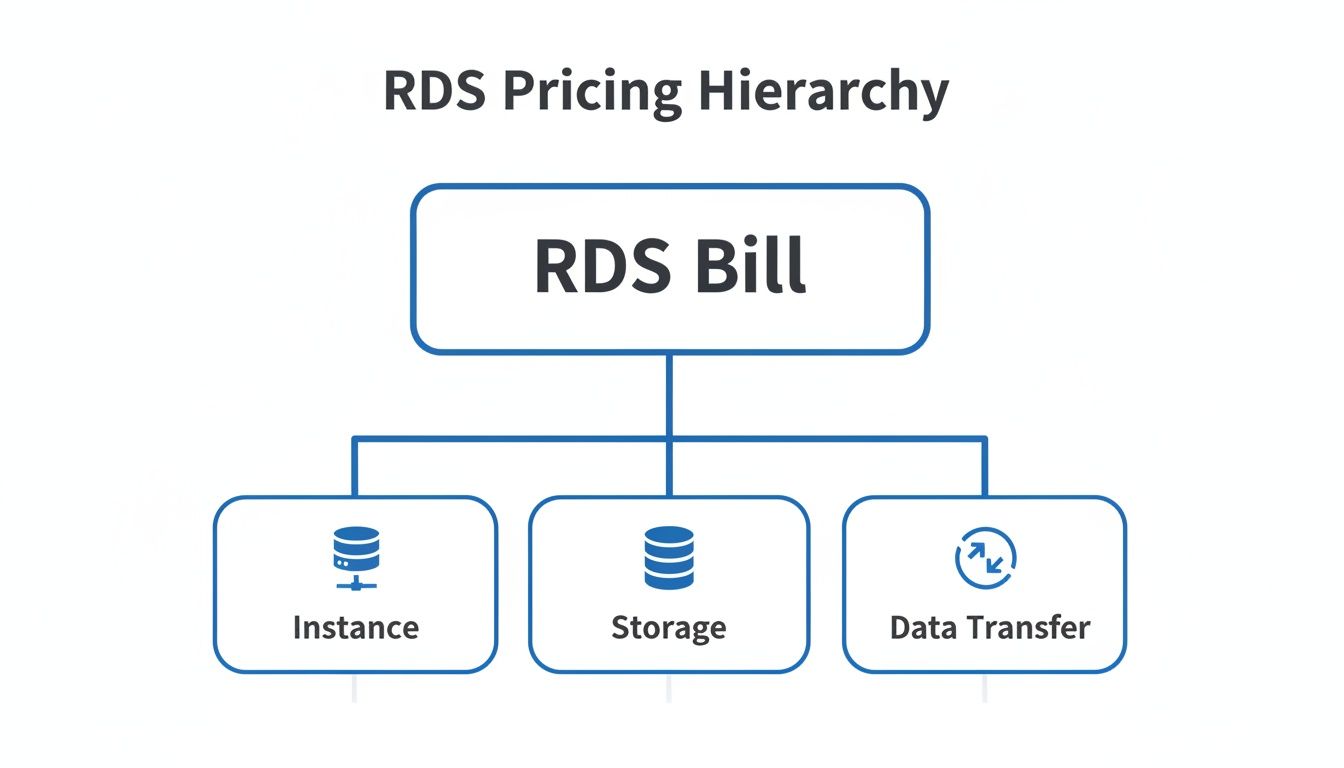
As you can see, your total bill is a mix of compute power, disk space, and network activity. These are the fundamental pieces of the RDS pricing model.
To make this even clearer, here’s a quick overview of the main components that make up your monthly RDS bill.
Core RDS Pricing Components At A Glance
| Pricing Component | What It Covers | How It's Billed | Key Consideration |
|---|---|---|---|
| DB Instance | The virtual server's CPU, memory, and network capacity. | Per hour of runtime. | The instance family (e.g., t-class vs. r-class) dictates performance and cost. |
| Storage | The amount of disk space you provision for your database. | Per gigabyte per month (GB-month). | The type of storage (General Purpose, Provisioned IOPS) affects speed and price. |
| Data Transfer | Data moving in and out of your RDS instance. | Per gigabyte (GB). | Data transfer out to the internet is where costs usually add up. |
This table gives you a cheat sheet for where your money is going, helping you spot the biggest cost drivers at a glance.
The Core of Your Cost: The Database Instance
The real engine behind your RDS bill is the database instance itself. This is the virtual server running your database, providing the CPU, memory, and network resources it needs to function. AWS gives you a huge menu of instance types, each built for different kinds of jobs.
Your choice of instance family directly sets your hourly rate. For instance, a flexible T-class instance is great for workloads with occasional traffic spikes and is generally cheaper. On the other hand, a beefy M-class or R-class instance delivers consistent, high-octane performance for demanding apps but comes with a higher price tag.
Pay-As-You-Go, or On-Demand, is the most common starting point. It offers total flexibility, letting you pay for compute by the hour with no contracts. It’s perfect for development, testing, or apps with unpredictable traffic.
This flexible on-demand model is where most people start with RDS. A small db.t3.micro instance runs about $0.017 per hour in a US East region, but costs scale up quickly for bigger instances.
For a more concrete example, a db.m5.large instance costs roughly $0.171 hourly. If you run that non-stop for a month, you're looking at around $249.66 for compute alone. Tack on 100 GB of General Purpose SSD storage at $0.115/GB-month, and you add another $23. That brings your estimated total to $272.66 before you even account for backups or data transfer.
It's also helpful to see how RDS fits into the broader world of database costs. Getting a wider perspective by understanding pricing models for database tools can help you appreciate the trade-offs between a fully managed service like RDS and other database solutions out there.
Exploring Storage IOPS and Backup Costs
It's easy to focus on the hourly rate for your database instance, but that's only one piece of the puzzle. Several other factors can quietly inflate your monthly bill, turning a predictable budget into a surprise invoice.
To really get a handle on your spending, you need to understand the less-obvious costs tied to storage performance and backups. These are the details that often separate a well-managed cloud budget from an out-of-control one.
Let's pull back the curtain on these crucial components of amazon relational database service pricing.
General Purpose Versus Provisioned IOPS Storage
Amazon RDS gives you a few different storage types, and your choice involves a direct trade-off between cost and performance. The two most common options you'll encounter are General Purpose SSDs and Provisioned IOPS SSDs.
General Purpose SSD (gp2 and gp3): This is the default choice and usually the most cost-effective. It works perfectly for a huge range of workloads, like development and test environments. You're billed simply for the amount of storage you use per gigabyte, per month.
Provisioned IOPS SSD (io1 and io2): This is the high-octane option. It’s built for production databases that handle heavy transaction volumes and require consistently fast, low-latency performance. The pricing is more involved since you pay for both the storage size and the specific number of Input/Output Operations Per Second (IOPS) you reserve.
Picking the right storage is critical. While Provisioned IOPS delivers incredible speed, the cost can skyrocket if you reserve more performance than you actually need.
Demystifying Backup Storage Pricing
Backups are your database's safety net, but they aren't completely free. RDS automates backups and lets you create manual snapshots, and both of these consume storage that adds to your bill.
AWS gives you a pretty generous starting point. You get free backup storage up to the total size of your active database storage in a region. For example, if you have a 100 GB database, you won't pay for the first 100 GB of backup storage.
The charges kick in once your total backup size exceeds that free allowance. Any additional backup storage is billed at a standard rate, which is typically around $0.095 per GB per month, though this can vary by region. These costs can creep up if you keep a lot of manual snapshots or have a long automated backup retention window.
Because RDS storage is built on top of EBS, it helps to understand its pricing model too. For a deeper look, check out our guide on Amazon EBS pricing.
How These "Hidden" Costs Impact Your Bill
It’s tempting to only budget for the instance's hourly rate, but our experience shows that these other costs like storage, I/O, and backups can easily inflate a final bill by 20-50% for teams that aren't paying close attention.
Think about a high-transaction database using Provisioned IOPS (io1) on a 1 TB drive. Just reserving 5,000 IOPS could tack on hundreds of dollars to your monthly bill, completely separate from the instance cost. These charges are a major part of your total RDS spend and demand just as much attention as the big-ticket items.
Pricing Aurora and Serverless Database Models
While standard RDS instances have a pretty straightforward hourly bill, things get more interesting with Amazon Aurora and RDS Serverless. These options ditch the simple flat fee for a running server and, instead, break down your costs into smaller, more dynamic pieces.
This approach can be a game-changer for efficiency with certain workloads, but it definitely requires you to think about your budget in a new way. Making a smart decision means understanding how these modern, cloud-native databases work.
Let's unpack how the pricing for these powerful database options is different from the standard RDS you might be used to.
Deconstructing Amazon Aurora Pricing
Amazon Aurora is a high-performance database engine that's compatible with MySQL and PostgreSQL, but its pricing model is entirely its own. Instead of bundling everything into one hourly instance cost, Aurora separates its billing into a few key areas. This gives you a much more granular look at what you're actually paying for.
The main cost components for Aurora are:
- Database Instance Hours: Just like standard RDS, you pay an hourly rate for the compute power (CPU and memory) that your database cluster's instances use.
- Storage: You're billed for the storage your database uses, measured in gigabytes per month. Aurora's storage grows automatically with your data, so you only pay for what you use, when you use it.
- I/O Operations: This is the big difference. You get charged per million I/O requests your database handles. For apps with extremely high read/write activity, this can quickly become a major line item on your bill.
Because of this unbundled model, an I/O-heavy application could end up being more expensive on Aurora than on a provisioned IOPS setup with standard RDS if you're not careful. For most typical workloads, however, its incredible performance and efficiency offer fantastic value.
The Pay-Per-Use Model of RDS Serverless
RDS Serverless takes the pay-for-what-you-use idea to a whole new level. It's a perfect fit for applications with intermittent, infrequent, or unpredictable traffic, for example dev environments, test servers, or small apps that don't need to be on 24/7. With Serverless, you finally stop paying for a database that's just sitting idle.
Pricing is based on a unit called an Aurora Capacity Unit (ACU). Each ACU gives you a mix of about 2 GB of memory, plus the associated CPU and networking power. You're billed per second for the ACUs your database consumes only when it's active.
The real magic of RDS Serverless is its ability to scale down to zero. If your database has no connections for a set amount of time, it can automatically pause itself. While it's paused, you only pay for storage, which completely eliminates your compute costs.
This makes RDS Serverless an incredibly cost-effective choice for any workload that doesn't need constant uptime. For example, a staging database that's only used during business hours could slash its compute costs by over 60% just by being inactive overnight and on weekends.
The trade-off? A potential "cold start" delay. It can take a few seconds for the database to wake up and serve the first request after it's been paused. For most non-production uses, that brief wait is a tiny price to pay for such significant savings on your amazon relational database service pricing.
Forecasting Your Bill With Real World Examples
Breaking down the individual pieces of Amazon Relational Database Service pricing is a good start, but the real "aha!" moment comes when you see how they all add up in the real world. To make these concepts stick, let's walk through two common scenarios and put together a realistic monthly cost estimate.
We’ll be using the AWS Pricing Calculator as our guide, which is the best way to turn your technical needs into a financial forecast. It’s an essential step to avoid any nasty surprises on your bill.
The calculator's interface lets you configure every last detail of your RDS service, from the instance type and storage all the way to your deployment model.
Getting comfortable with this tool is key to budgeting with confidence. Let's run a couple of examples.
Scenario 1: A Small Development Database
First up, picture a small startup building out a new application. They need a simple PostgreSQL database for development and testing. The workload isn't constant, so they don't need blistering performance or ironclad availability just yet.
Here’s what their setup looks like:
- Region: US East (N. Virginia)
- Instance Type:
db.t3.medium(a flexible, general-purpose instance) - Deployment: Single-AZ (no standby replica needed for dev/test)
- Storage: 50 GB General Purpose SSD (gp3)
- Data Transfer: 10 GB out to the internet per month
- Backups: Standard automated backups (covered by the free tier for this size)
Based on On-Demand pricing, the cost is pretty straightforward. It's mostly driven by the instance running 24/7 and the small amount of storage.
Scenario 2: A High-Availability Production Database
Now let's shift gears to a much more demanding use case. Think of an established e-commerce site getting ready for a big holiday sale. They need a highly available and performant MySQL database that can absorb a heavy transaction load without a hiccup. Downtime is not an option.
Their requirements are a big step up:
- Region: US East (N. Virginia)
- Instance Type:
db.m5.large(a memory-optimized instance built for performance) - Deployment: Multi-AZ (for automatic failover and high availability)
- Storage: 500 GB Provisioned IOPS (io1) with 3,000 IOPS for consistent speed
- Data Transfer: 200 GB out to the internet per month
- Backups: 500 GB (still covered by the free tier)
A Multi-AZ deployment is a non-negotiable feature for serious production workloads. It works by creating a standby replica of your database in a different Availability Zone. You're essentially paying for two instances, but it's what ensures your database stays online even if the primary one fails.
This more robust setup comes with a predictably higher price tag. Let's compare the two side-by-side.
RDS Cost Estimation Comparison
The jump in cost from a simple dev database to a production-ready one can be surprising if you're not prepared. The table below breaks down the monthly estimates for our two scenarios, showing exactly where the money goes.
| Cost Component | Scenario 1: Dev/Test DB (Single-AZ, t3.medium) | Scenario 2: Production DB (Multi-AZ, m5.large) |
|---|---|---|
| Instance Hours | ~$30.37 | ~$249.66 |
| Storage | ~$5.75 (for 50 GB gp3) | ~$62.50 (for 500 GB io1) |
| Provisioned IOPS | $0.00 | ~$300.00 (for 3,000 IOPS) |
| Data Transfer | $0.00 (covered by free tier) | ~$9.00 (for 100 GB over free tier) |
| Total Estimated Cost | ~$36.12 per month | ~$621.16 per month |
As you can see, the bill for a production database is in a completely different league. The biggest cost drivers by far are the Multi-AZ instance price (double the Single-AZ cost) and the Provisioned IOPS, which are both critical for achieving high availability and performance.
Accurately forecasting these expenses is crucial. For an even deeper dive into your spending patterns, you can explore the detailed data available in your billing files, as we cover in our guide to AWS Cost and Usage Reports.
Actionable Strategies To Optimize Your RDS Costs
Knowing what’s on your RDS bill is one thing. Actually shrinking it is where the real savings begin. It's time to shift from just paying for Amazon Relational Database Service to proactively managing it. This is how you get your RDS costs under control with practical, real-world strategies.
The first step is to look beyond the default On-Demand pricing. While it offers flexibility, it's easily the most expensive way to run a database over the long haul. The good news is AWS gives you powerful ways to slash those costs without giving up performance.
Lock In Savings With Reserved Instances and Savings Plans
If you have predictable, long-term database needs, running On-Demand is like paying full price for a car when you could have leased it for a fraction of the cost. This is where Reserved Instances (RIs) and Savings Plans come in. They are your best bet for a serious discount.
Reserved Instances (RIs): You commit to a specific instance type in a specific region for a one or three-year term. These are perfect for stable production workloads where you know exactly what server you’ll be running for the foreseeable future.
Savings Plans: This is a much more flexible way to commit. Instead of locking into a specific instance, you commit to a certain dollar amount of compute spending per hour. This discount automatically applies across various AWS services, including RDS, giving you big savings while letting you change instance types or even regions as needed.
By committing to a one or three-year term, you can unlock discounts of up to 72% compared to standard On-Demand pricing. For any database that runs 24/7, this is the single most effective way to lower your bill.
Right-Size Your Database Instances
One of the most common and costly mistakes is overprovisioning. Paying for a massive, powerful instance when a smaller one would work just fine is like renting a moving truck for a weekly grocery run. Right-sizing is simply the process of matching your database's actual performance needs to the most cost-effective instance.
To do this right, you need to get familiar with Amazon CloudWatch. Monitor key metrics like CPU utilization and memory usage. If your database consistently shows low CPU usage, you're almost certainly paying for capacity you don't need. Downsizing to a smaller instance can cut your hourly bill without your application ever noticing the difference. You can learn more about picking the right fit by exploring the different AWS RDS instance types available.
Schedule Shutdowns for Non-Production Instances
This is a powerful and often overlooked tactic: just turn off your non-production databases when no one is using them. Development, testing, and staging environments often sit completely idle for more than 12 hours a day and all weekend long. That adds up to a huge amount of wasted spending.
When you stop an RDS instance, you stop paying for the instance hours. You still pay for the provisioned storage, but shutting down the compute engine delivers massive savings. This one simple action can easily cut the compute cost of a non-production database by over 60%.
Of course, manually stopping and starting instances every single day is tedious and just waiting for someone to forget. This is where automation tools become a lifesaver.
Platforms like CLOUD TOGGLE are built specifically for this. You can set simple "on" and "off" schedules for all your RDS instances across your entire organization. It makes it incredibly easy to enforce a consistent shutdown policy without anyone having to lift a finger, guaranteeing you capture those savings automatically.
Beyond these RDS-specific tips, it's also smart to understand broader cloud cost optimization strategies that can lower your entire AWS bill. A mix of both targeted and general cost-saving measures is the real key to maintaining a healthy cloud budget.
Answering Your Top Questions About RDS Pricing

Even after breaking down all the components, you probably still have a few questions. The world of Amazon Relational Database Service pricing is full of nuances, and it’s easy to feel like you’re missing something.
This section tackles the most common questions we hear from developers, managers, and FinOps pros. Our goal is to give you clear, direct answers so you can make confident decisions about your database architecture and budget.
Are There Hidden Costs With Amazon RDS I Should Know About?
Yes. While instance hours and storage are the main charges, several other costs can sneak up on you. It's crucial to account for these "gotchas" when forecasting your budget to avoid any nasty surprises on your next bill.
These extra costs often fly under the radar during initial estimates but can seriously inflate your total spend. Knowing what they are is the first step to keeping them in check.
Here are the most common ones to watch for:
- Data Transfer Out to the Internet: AWS gives you a free tier of 100 GB per month for data going out to the internet, pooled across all services. Anything past that is billed per gigabyte, and these charges can stack up fast if your application has a global user base.
- Provisioned IOPS: If you opt for io1 or io2 storage for high-performance databases, you're paying for both the storage volume and the specific number of I/O operations you reserve. If you overprovision, this can easily become one of the most expensive lines on your bill.
- Excess Backup Storage: You get free backup storage equal to your total provisioned database storage in a region. If your automated backups and manual snapshots go over this limit, you’ll be billed for the extra space.
- Database Snapshot Exports: Exporting a database snapshot to Amazon S3 for long-term archiving isn't free. You'll get hit with a fee for every gigabyte of data in the snapshot.
- Premium Features: Add-ons like Enhanced Monitoring and RDS Proxy are great for visibility and connection management, but they come with their own separate price tags.
How Does A Multi-AZ Deployment Impact My RDS Bill?
A Multi-AZ deployment is fantastic for high availability, but it has a direct and significant impact on your costs. In short, it basically doubles your compute spending because you're running a fully replicated, standby database instance in a separate Availability Zone.
This means you’re billed for the compute hours of two instances instead of just one. For example, if a Single-AZ instance costs $100 per month, the same instance in a Multi-AZ setup will run you $200 per month for the compute portion alone.
The trade-off is clear: you pay more for dramatically higher availability and durability. For any mission-critical production database where downtime is unacceptable, the extra cost of Multi-AZ is considered a necessary and worthwhile investment.
On top of that, you’ll also see data transfer costs from the replication happening between your primary and standby instances. While data transfer within the same region is cheaper than sending it out to the internet, it’s still another factor to plug into your cost model.
Is It Cheaper To Run My Own Database On An EC2 Instance?
On paper, running your own database on an EC2 instance can certainly look cheaper. You might compare the hourly rate of an EC2 instance to an RDS instance of the same size and see a lower number. But this comparison is often misleading because it completely ignores the total cost of ownership (TCO).
When you run a database on EC2, you're on the hook for all the management overhead that RDS handles for you. This includes:
- Initial server setup and database configuration.
- Applying OS and database security patches.
- Configuring, managing, and testing backups.
- Building and testing a high availability and failover strategy from scratch.
- Manually scaling the instance when performance starts to lag.
Each of these tasks eats up valuable engineering time and effort. For most businesses, the operational savings from using a managed service like RDS far outweigh the slightly higher infrastructure cost. The time your engineers save on database administration can be poured back into building features that actually create business value.
Can I Stop An RDS Instance To Save Money?
Yes, you can, and for non-production environments, you absolutely should. Stopping idle RDS instances is one of the most effective cost-optimization strategies out there.
When an RDS instance is stopped, you are no longer billed for the instance hours, which are typically the biggest part of your cost. It's important to remember, though, that you'll continue to be billed for your provisioned storage. This includes your database volume and any manual snapshots you decide to keep.
You can stop an instance for up to seven days at a time. After seven days, AWS will automatically restart it to perform necessary maintenance. For development or staging environments that are only needed during business hours, this simple action can slash your compute costs by over 60%. Automating this process is the key to capturing these savings consistently without anyone having to remember to do it manually.
Ready to stop paying for idle cloud resources? CLOUD TOGGLE makes it easy to automate RDS instance shutdowns and start saving immediately. Take control of your cloud bill with our 30-day free trial.