Think of AWS Trusted Advisor as your built-in expert for everything happening in your AWS account. It’s a real-time service that constantly scans your setup and gives you practical advice on how to save money, boost performance, and lock down your security. It’s like having a consultant on call 24/7, but one that’s focused entirely on your cloud environment.
What Is AWS Trusted Advisor and How Does It Help?
If you've ever managed a cloud environment, you know how easy it is to lose track of things. A developer spins up a server for a quick test and forgets to shut it down. A security group is configured too openly during a rushed deployment. Before you know it, these small oversights multiply, leading to surprise bills and gaping security holes. It happens to everyone.
This is exactly where AWS Trusted Advisor steps in. It's not just another reporting tool. It’s an automated service that works around the clock, checking your account against AWS's own best practices. It gives you a clear, prioritized list of things you need to fix.
It’s a lot like having a financial advisor who reviews your portfolio for underperforming assets. Trusted Advisor does the same for your cloud resources, pointing out idle servers, over-provisioned databases, and insecure access points before they turn into serious problems.
The Five Pillars of AWS Trusted Advisor
Trusted Advisor doesn't just throw a random list of alerts at you. Its recommendations are neatly organized into five core categories, or "pillars," that cover the most important aspects of a healthy cloud environment. This structure helps you make sense of the feedback and decide where to focus first.
Each pillar has a specific goal, from cutting costs to preventing downtime. Let's take a look at what they cover.
| Pillar | Primary Goal | Example Check |
|---|---|---|
| Cost Optimization | Reduce your monthly AWS bill. | Flags idle EC2 instances or unattached EBS volumes that you're still paying for. |
| Performance | Ensure your applications are fast and responsive. | Identifies over-utilized EC2 instances that are causing slowdowns. |
| Security | Find and fix common security vulnerabilities. | Warns about unrestricted port access, missing MFA on the root account, or public S3 buckets. |
| Fault Tolerance | Improve the resilience and availability of your apps. | Checks for single points of failure, like missing database backups or workloads in a single Availability Zone. |
| Service Limits | Avoid operational disruptions from hitting account quotas. | Alerts you when you're approaching a limit, such as the number of VPCs you can create. |
First launched back in 2014, Trusted Advisor has become a fundamental service for anyone serious about running a well-managed AWS environment. It runs daily checks that help teams catch costly mistakes early, which is a lifesaver for businesses trying to get a handle on their cloud spend. Its widespread adoption in 195 countries, including major markets like the United States and Australia, shows just how valuable it is. You can get a deeper look at its features by reading the AWS blog post on the Trusted Advisor organizational dashboard.
By understanding these five pillars, you can turn a long list of alerts into a concrete action plan. It allows your team to zero in on what's most urgent, whether that’s saving money this month, closing a security gap, or making sure your application can survive an outage.
A Practical Look at the Five Check Categories
Knowing what AWS Trusted Advisor is in theory is one thing, but seeing what it actually finds in your account is where the real value hits home. The service doesn't just give you vague ideas; it delivers specific, data-backed recommendations across five distinct categories. Think of each category, or pillar, as a specialized lens for inspecting a different facet of your cloud environment.
This infographic breaks down the five core pillars of AWS Trusted Advisor, showing how it organizes checks for Cost, Performance, Security, Fault Tolerance, and Service Limits.
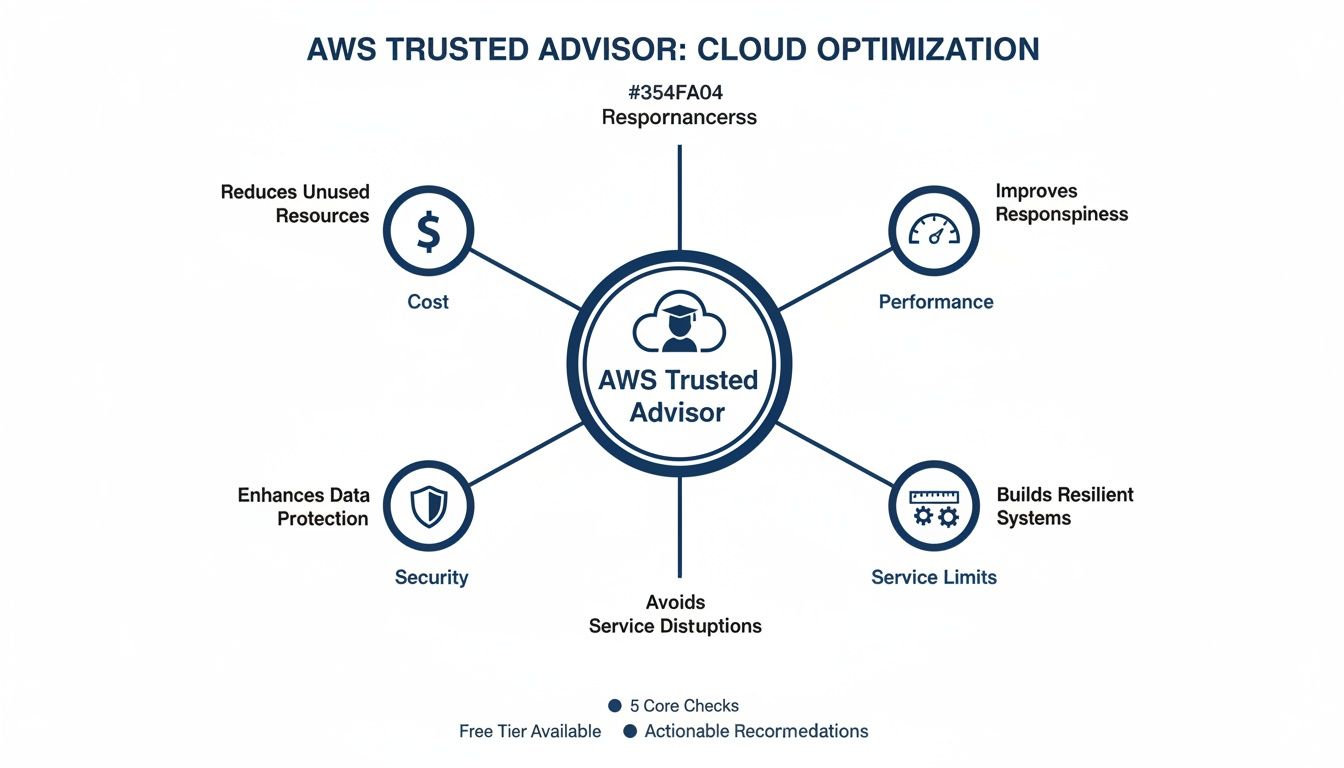
As you can see, each pillar targets a critical area of cloud health. This gives your team a structured way to tackle optimization and manage risk. Let's dig into the practical checks within each of these pillars and see what they really mean for your day-to-day operations.
Cost Optimization
For most businesses, getting a handle on cloud spend is priority number one. This is easily the most popular and impactful category in Trusted Advisor because its advice translates directly into dollar savings. The checks here are all about finding "zombie" resources: those forgotten assets that are no longer doing anything useful but are still showing up on your monthly bill.
Common cost-related checks include:
- Idle EC2 Instances: This check finds virtual servers with consistently low CPU usage. It's the classic sign of a server that's over-provisioned or was spun up for a temporary job and never shut down.
- Unattached EBS Volumes: When you terminate an EC2 instance, its attached storage volume (EBS) doesn't always get deleted with it. This check flags those orphaned volumes you’re still paying for.
- Idle Load Balancers: A load balancer with no healthy instances connected to it is basically a tollbooth on an empty road, it's just costing you money. This check points them out so you can get rid of them.
By acting on these tips, FinOps and DevOps teams can grab some quick wins and cut down on waste almost immediately. For a more in-depth look, learning about broader AWS cost optimization strategies can help you build an even more comprehensive savings plan.
Performance
Slow applications mean unhappy users and, ultimately, lost business. The performance pillar helps you pinpoint bottlenecks in your infrastructure before your customers notice. It looks at how your resources are being used to make sure your setup is right-sized to handle your workloads without breaking a sweat.
A key check here is High Utilization EC2 Instances. This alert warns you when your servers are constantly running near full capacity. While that might sound efficient, it's a huge red flag that your application is about to slow to a crawl or crash during a traffic spike. The typical recommendation is to either upgrade to a more powerful instance type or, better yet, set up auto-scaling to handle demand gracefully.
Security
In the cloud, security is non-negotiable. The security pillar is like your own automated security auditor, constantly scanning for common mistakes that could leave your data or infrastructure exposed. These checks are absolutely essential for maintaining a strong security posture and meeting compliance standards.
A single misconfigured security group can undo all your other security efforts. Trusted Advisor's security checks are designed to catch these simple but dangerous mistakes before an attacker does.
Some of the most important security checks are:
- Security Groups with Unrestricted Access: This one flags rules that leave sensitive ports, like SSH (22) or RDP (3389), open to the entire internet (0.0.0.0/0). It’s one of the most common ways attackers get a foothold.
- MFA on Root Account: Your root user has the keys to the entire kingdom. This check makes sure Multi-Factor Authentication (MFA) is turned on for that account, adding a critical layer of protection against account takeover.
- Publicly Accessible S3 Buckets: It sniffs out Amazon S3 buckets that allow public read or write access. This is a recipe for a data breach if sensitive information is exposed by accident.
Fault Tolerance
How well would your application survive if something broke? The fault tolerance pillar helps you answer that question by hunting for single points of failure in your architecture. The whole point is to make your systems more resilient so they can keep running even when a component inevitably fails.
For example, the Amazon RDS Multi-AZ check verifies that your databases are set up for high availability. A Multi-AZ deployment automatically keeps a synchronized backup copy in a different Availability Zone. If your primary database goes down, AWS automatically fails over to the backup, minimizing downtime and preventing data loss.
Service Limits
Every AWS account has built-in limits on how many resources you can create, like the number of EC2 instances or VPCs. These guardrails are there to protect you from accidentally racking up a massive bill and to ensure the health of the AWS services themselves. But hitting a limit you didn't know you were close to can stop a deployment in its tracks.
The service limits pillar keeps an eye on your resource usage against these quotas. For instance, if you’re about to use up all your Elastic IPs in a region, Trusted Advisor will give you a heads-up. This gives you time to either clean up old resources or proactively ask AWS support for a limit increase, so your operations can continue without a hitch.
How to Read and Prioritize Trusted Advisor Recommendations
Opening your AWS Trusted Advisor dashboard for the first time can feel like trying to drink from a firehose. You’re hit with a long list of alerts, color-coded warnings, and technical jargon that can be totally overwhelming. But with the right approach, you can quickly turn that mountain of data into a clear, actionable roadmap for improving your cloud environment.
The first thing to understand is what you’re actually seeing. Not everyone gets access to the full suite of checks. Your access level depends entirely on your AWS Support plan, which dictates the depth of insights you'll get.
Understanding Your Access Level
The recommendations you see are directly tied to your support tier. Think of it as a tiered system where the automated guidance you receive grows along with your operational needs.
Basic and Developer Support: If you're on these plans, you have access to a core set of checks. These mainly cover Service Limits and foundational Security settings, like MFA on your root account or basic S3 bucket permissions.
Business, Enterprise On-Ramp, and Enterprise Support: Subscribing to these higher-tier plans unlocks the full power of AWS Trusted Advisor. You get access to all checks across all five pillars, including Cost Optimization, Performance, and Fault Tolerance.
This is a critical distinction. If you're trying to slash costs but only see security warnings, it’s probably because your support plan doesn’t include the cost optimization checks. Upgrading your plan is the only way to unlock those valuable insights.
Decoding the Dashboard and Prioritizing Fixes
Once you have the right access, your dashboard uses a simple traffic light system to present its findings. This visual cue is your best friend for quick prioritization.

Each color signals how urgent the issue is, helping you decide where to focus first.
Here’s a quick guide to interpreting the colors:
- Red (Action Recommended): These are your most critical alerts. They often point to big security risks, major cost-saving opportunities, or problems that could tank your application's performance and resilience. Start here. Always.
- Yellow (Investigation Recommended): Think of these as warnings. They might not be on fire, but they need a closer look. They could be early signs of future trouble or smaller optimization opportunities.
- Green (No Problems Detected): A welcome sight. This means your resources passed the check and are aligned with AWS best practices.
Creating an Action Plan
With hundreds of potential alerts, you need a game plan. A great starting point is to go after the "low-hanging fruit," fixes that deliver a high impact for minimal effort.
A simple and effective strategy is to prioritize in this order: first address all red security alerts, then move to red cost optimization alerts. This approach ensures you immediately close your biggest vulnerabilities and capture the easiest savings.
For example, a red alert for an open SSH port is a glaring security gap you should close immediately. In the same vein, a red alert for a large, idle EC2 instance is just money down the drain and should be shut down right away.
At enterprise scale, this gets much more complex. One of the most impressive examples comes from Indeed, which had to manage governance across more than 1,000 AWS accounts. Facing thousands of daily recommendations, they built a system to automatically collect and normalize the data, turning a flood of alerts into a streamlined fix-it pipeline. You can read more about how Indeed scaled its cloud governance with AWS Trusted Advisor on the AWS blog.
Putting Trusted Advisor to Work for FinOps and Cost Control
While AWS Trusted Advisor gives you pointers across five key pillars, its real money-making (and saving) power for most teams is in the Cost Optimization category. It’s one thing to get a list of underused resources; it’s another thing entirely to systematically turn those alerts into real, repeatable savings. This is where a solid FinOps practice comes in.
Instead of treating cost management like a reactive fire drill you run once a quarter, you can use Trusted Advisor as the data engine for a proactive financial strategy. The goal is to shift from just spotting waste to building a continuous cycle of review, action, and measurement. You’ll transform your team from cloud firefighters into strategic financial planners.
Building a Repeatable FinOps Process
A successful FinOps process doesn't mean you have to tear down your current operations. It really just starts with a simple, repeatable routine for looking at the cost data AWS Trusted Advisor hands you. This makes sure potential savings don't get lost in the shuffle and that optimization becomes a standard part of your workflow.
This routine could look something like this:
- Weekly Review: Set aside a specific time each week for the FinOps team or a designated cloud cost owner to go through the Trusted Advisor dashboard. Zero in on the Cost Optimization pillar and any new red or yellow alerts.
- Prioritize and Assign: Spot the recommendations with the biggest impact, like large, idle EC2 instances or unattached EBS volumes. Assign these "quick win" tasks to the right engineering teams for them to tackle right away.
- Track and Report: Use a simple spreadsheet or a project management tool to keep tabs on where each recommendation stands. Most importantly, put a number on the savings from each action to show the ROI of your efforts.
To really get the most financial benefit from your cloud setup, it's smart to look into broader IT cost saving strategies. This helps you fit the specific alerts from Trusted Advisor into a more complete financial plan for your entire tech stack.
From Idle Resources to Strategic Commitments
Beyond just hitting the delete button on idle resources, Trusted Advisor gives you the hard data needed to make bigger, strategic purchasing decisions. The recommendations it makes around Amazon EC2 Reserved Instances (RIs) and Savings Plans are incredibly valuable. These checks look at your past usage to find steady-state workloads where you can commit to usage in return for some serious discounts.
For example, Trusted Advisor might flag a group of instances that have been running 24/7 for the past month. Based on that, it could recommend buying a one- or three-year Savings Plan, which could slash the cost of that compute power by up to 72%. That’s a huge lever for pulling your overall cloud spend down.
A mature FinOps practice uses Trusted Advisor not just to cut waste, but to make informed, data-driven commitments. The tool provides the evidence needed to confidently purchase RIs or Savings Plans, locking in savings and making your cloud budget more predictable.
This data-driven approach is a total game-changer. Cost savings are a primary reason for moving to and optimizing the cloud. In fact, 92% of surveyed AWS customers in India reported lower expenses compared to their on-premises setups, proving the potential gains. This efficiency helped fuel massive economic growth, with a remarkable 3.5x ROI for businesses. As the global cloud market grows, tools like Trusted Advisor become even more essential for maximizing these financial wins. You can read more about how cloud technology saves costs and generates revenue.
A great real-world example is S&P Global Market Intelligence. After moving to AWS, they used AWS Trusted Advisor to pinpoint savings opportunities, especially with RDS Reserved Instances. By acting on these recommendations, they achieved massive cost efficiencies and streamlined their development lifecycle. For a deeper dive into your own spending patterns, check out our guide on how to use AWS Cost and Usage Reports.
Where Trusted Advisor Stops and Other Tools Begin
Every great tool has its limits, and the key to using it well is knowing where those limits are. While AWS Trusted Advisor is an exceptional guide for identifying potential improvements, it’s fundamentally a recommendation engine. It tells you what could be better but leaves the doing entirely up to you and your team.

This distinction is crucial. Trusted Advisor is brilliant at flagging an idle EC2 instance that’s bleeding money, but it won't shut that instance down for you. That final, critical step requires manual intervention or a separate automation workflow, creating a gap between getting an insight and actually taking action.
The Recommendation to Action Gap
The biggest limitation of AWS Trusted Advisor is that it's a passive tool. It gives you a highly detailed "to-do" list but doesn't have the power to check anything off. For busy engineering and FinOps teams, this means even the most valuable recommendations can get lost in a backlog of other priorities.
This creates a few common headaches for organizations:
- Manual Toil: Engineers have to manually log in, find the resource, and apply the fix, whether that’s terminating an instance, resizing a database, or modifying a security group. That’s time taken away from building your product.
- Delayed Savings: Every hour an idle server stays online is money you'll never get back. If a recommendation sits in a Jira ticket for days or weeks, the potential savings evaporate.
- Risk of False Positives: Sometimes, a resource flagged as "idle" is actually a hot standby for disaster recovery. Teams have to investigate every alert to avoid accidentally turning off something critical.
While Trusted Advisor provides specific recommendations, a complete strategy often involves a more comprehensive integrated risk management (IRM) approach. This is where specialized platforms come in, building a bridge between identification and remediation.
Bridging the Gap With Automation
This is exactly where a dedicated automation tool like CLOUD TOGGLE becomes the perfect partner for AWS Trusted Advisor. It doesn’t replace Trusted Advisor; it completes it. It handles the "doing" part that Trusted Advisor is missing, letting you automate the actions needed to realize the savings it uncovers.
Think of it this way:
- AWS Trusted Advisor is the detective that finds the evidence (the idle server).
- CLOUD TOGGLE is the officer who takes action based on that evidence (automatically shutting it down on a schedule).
By pairing the two, you create a powerful, closed-loop system for cost control. Trusted Advisor finds the waste, and CLOUD TOGGLE eliminates it automatically, ensuring no savings opportunity gets missed.
For example, when Trusted Advisor identifies a development server that’s only used during business hours, you can use CLOUD TOGGLE to create a simple schedule to power it off every night and weekend. This single move turns a static recommendation into recurring, predictable savings with zero ongoing manual effort. This approach is a core part of modern cloud cost optimization tools that focus on proactive management.
AWS Trusted Advisor vs. CLOUD TOGGLE for Cost Management
While Trusted Advisor is excellent at finding savings opportunities, a dedicated tool is often needed to act on them consistently. Here’s a quick comparison of how the two stack up for cost management.
| Feature | AWS Trusted Advisor | CLOUD TOGGLE |
|---|---|---|
| Primary Function | Identifies potential cost savings and risks (recommendations) | Automates actions based on schedules (remediation) |
| Cost Savings Approach | Passive reports and alerts on idle or oversized resources. | Proactive, scheduled shutdown/startup of resources. |
| Manual Effort | High. Requires engineers to manually implement each fix. | Low to none. Set a schedule once and it runs automatically. |
| Time to Savings | Delayed. Savings depend on how quickly teams act. | Immediate. Savings begin with the first scheduled power-off. |
| User Control | None. It's a read-only reporting service. | Full. Empowers users with on-demand controls and simple scheduling. |
| Best For | Finding what to fix. | Automatically fixing what's found. |
As the table shows, the two tools are complementary. Trusted Advisor tells you where you’re leaking money, and CLOUD TOGGLE provides the simple, automated plug to stop the leak.
CLOUD TOGGLE: The Logical Next Step
For teams serious about acting on the insights from their AWS Trusted Advisor reports, automation isn't just a nice-to-have; it's a necessity. CLOUD TOGGLE is designed to be that logical next step.
It offers a simple and secure way to automate resource scheduling without the complexity of building and maintaining custom Lambda scripts. It empowers your team to turn recommendations into immediate, tangible results.
Frequently Asked Questions About AWS Trusted Advisor
When you first start digging into AWS Trusted Advisor, a few common questions always seem to pop up around cost, functionality, and security. Getting straight answers is the key to making the service work for you and integrating it properly into your day-to-day operations.
Here are the direct answers to the questions we hear most often.
How Much Does AWS Trusted Advisor Cost?
The price you pay for AWS Trusted Advisor is baked directly into your AWS Support plan. The level of insight you get is tied to the tier you’re on, so it’s important to pick a plan that actually fits your operational needs.
There are a few main levels:
Basic and Developer Support: With these plans, you get a handful of core checks. They mostly cover security fundamentals (like MFA on your root account) and basic service limits. Developer Support will run you $29 per month or 3% of your AWS bill.
Business and Enterprise Support: This is where you unlock the real power of Trusted Advisor. These higher-tier plans give you access to all checks across all five pillars, including the ones that really matter for your budget: Cost Optimization and Performance. Business Support starts at $100 per month and goes up with your usage.
In short, if you want the valuable cost-saving recommendations, you’ll need to be on at least the Business Support plan.
How Often Are Trusted Advisor Checks Updated?
AWS Trusted Advisor doesn't check your environment in real time. Instead, it refreshes its data on a set schedule. For most checks, you can expect an update at least once per week.
However, if you're on a Business or Enterprise Support plan, many of the checks get a daily refresh.
You also have the option to trigger a manual refresh for a specific check or a whole category. This is perfect for right after you've fixed an issue and want to see the alert disappear. Just be aware that AWS limits how often you can do this, so use it when you really need it.
Can I Automate Actions From Trusted Advisor Alerts?
Out of the box, AWS Trusted Advisor is purely a recommendation engine; it points out problems but won't fix them for you. However, you absolutely can build your own automation to act on its findings. The standard AWS-native way to do this involves Amazon EventBridge and AWS Lambda.
You can set up an EventBridge rule to watch for a new Trusted Advisor alert. When it spots one, it triggers a Lambda function that can perform an action, like shutting down a flagged EC2 instance. This creates a really effective, automated fix.
While that approach works, it means writing and maintaining code. Building those scripts takes time and requires specific expertise. If you're looking for a much simpler, no-code path, a tool like CLOUD TOGGLE is a fantastic alternative. It gives you pre-built scheduling so you can act on cost-saving advice without writing a single line of code.
Is It Secure to Use AWS Trusted Advisor?
Yes, absolutely. AWS Trusted Advisor is a native AWS service that runs inside the same secure environment as everything else. It operates under strict security protocols and only requires specific, read-only permissions through an IAM (Identity and Access Management) role to do its job.
This means it can see the configuration and metadata of your resources, but it has no permissions to change anything. The access is designed for least privilege, giving it just enough visibility to run its checks without opening up any unnecessary risk. You always have full control over what Trusted Advisor can and can't see.
While AWS Trusted Advisor finds idle resources, acting on those findings is the key to real savings. CLOUD TOGGLE makes it simple to automate the shutdown of those resources on a schedule, turning recommendations into immediate, predictable cost reductions. Stop letting idle servers drain your budget and start automating your savings at https://cloudtoggle.com.